Turn on task notifications
draft · 3 image slots
These settings are yours alone — nobody else in your workspace is affected by anything on this page. By the end of it you'll be told about the task activity you care about and nothing else, in the app and in your inbox. Two minutes.
Everything lives at Settings → Preferences. Changes save as you make them; there's no Save button, and the page says so at the bottom.
While you're here: light or dark
The first thing on the page is Appearance. Pick Light, Dark, or System — System follows whatever your computer is set to. A line underneath tells you which one you're currently using. It's a personal setting, it takes effect immediately, and it has nothing to do with the rest of this article.
1. Choose your channels
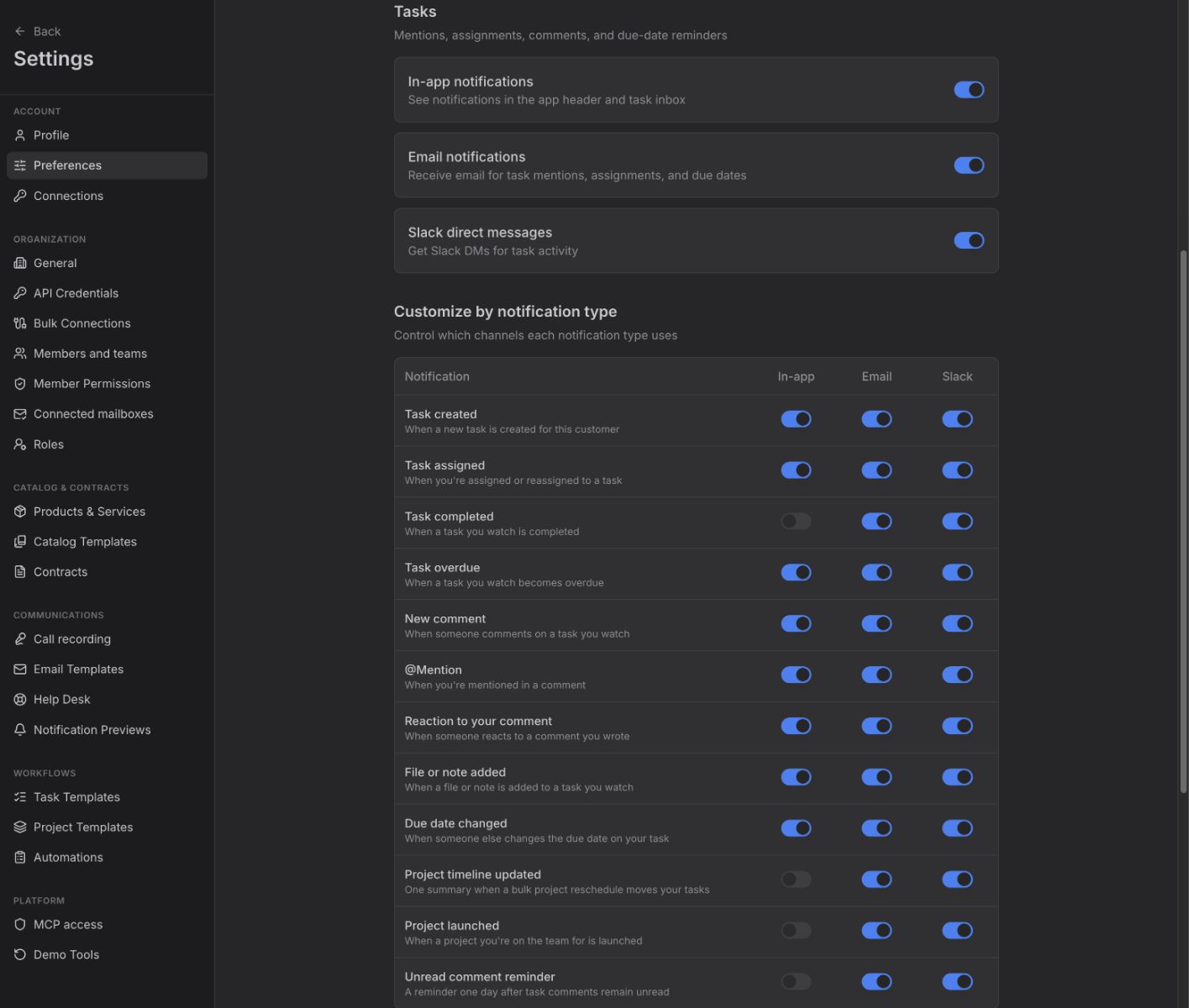
Under Tasks there are three switches. These are the master controls — turning one off here turns it off for every kind of task notification.
- In-app notifications — the bell in Feta.
- Email notifications — task activity in your inbox.
- Slack direct messages — Slack DMs for task activity. This needs Slack connected to your workspace; ask us if you'd like that turned on.
For most people the right starting point is in-app and email both on.
2. Narrow it down by type
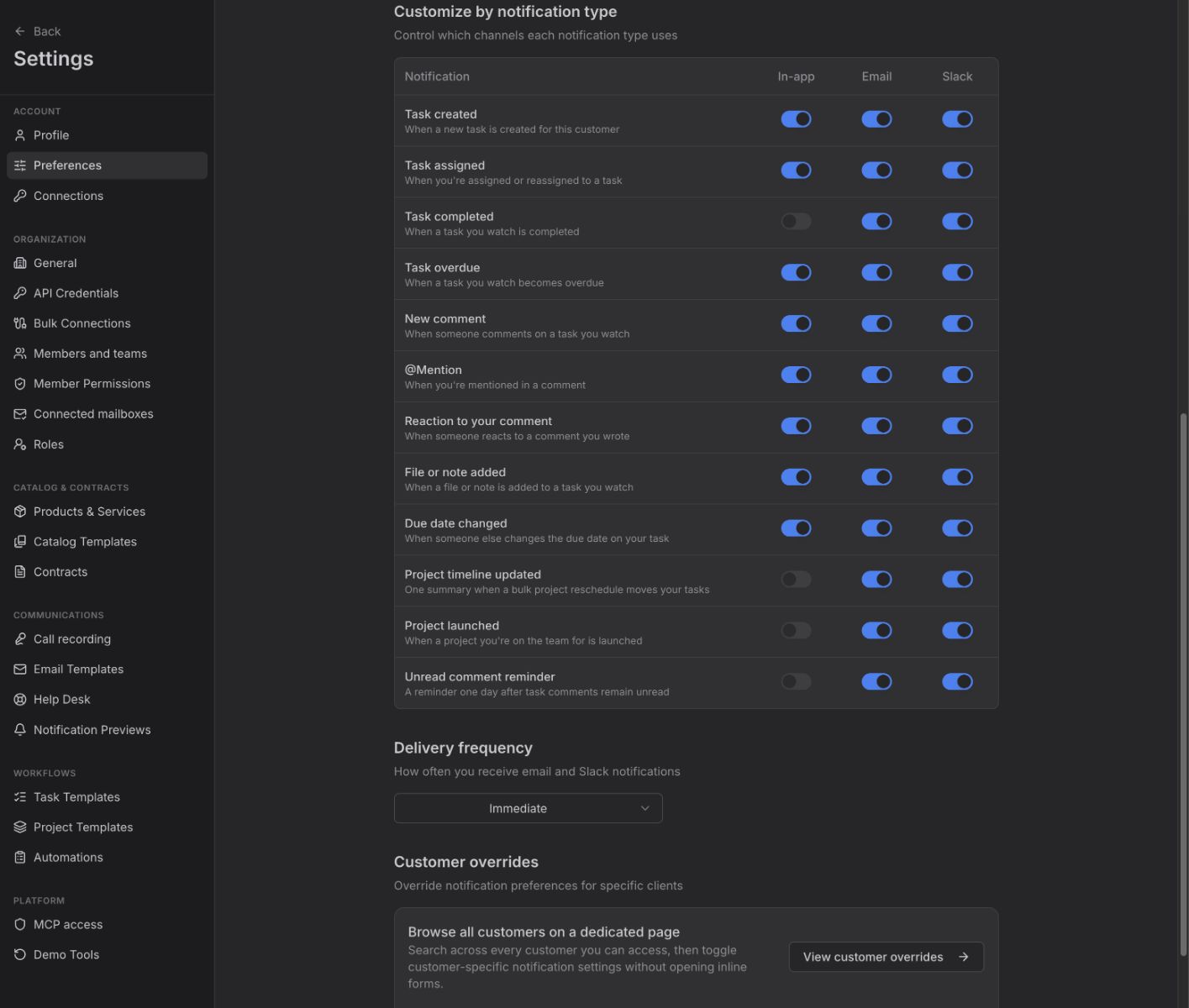
Customize by notification type is a grid: one row per kind of task activity, one column per channel. Use it to keep email for the things that need a reply and leave the rest to the bell.
The rows are:
| Notification | What it means |
|---|---|
| Task created | A new task is created for this customer |
| Task assigned | You're assigned or reassigned to a task |
| Task completed | A task you watch is completed |
| Task overdue | A task you watch becomes overdue |
| New comment | Someone comments on a task you watch |
| @Mention | You're mentioned in a comment |
| Reaction to your comment | Someone reacts to a comment you wrote |
| File or note added | A file or note is added to a task you watch |
| Due date changed | Someone else changes the due date on your task |
| Project timeline updated | One summary when a bulk project reschedule moves your tasks |
| Project launched | A project you're on the team for is launched |
| Unread comment reminder | A reminder one day after task comments remain unread |
A switch that's off and dimmed means that combination isn't available. The In-app column is dimmed for Task completed, Project timeline updated, Project launched, and Unread comment reminder — those arrive by email rather than in the bell. A whole column dims when you've turned its master switch off in step 1.
Once you've changed anything here, a Reset to defaults button appears next to the heading. It puts every type back to following your three master switches.
3. Pick how often
Delivery frequency controls email and Slack. Two choices:
- Immediate — you hear about it when it happens.
- Daily digest — one message a day instead.
The bell is unaffected either way; it always updates as things happen.
4. Quieten one client
If one account is noisy and the rest are fine, you don't have to turn anything off globally. Under Customer overrides, click View customer overrides. Search for the client, expand their card, and set channels and frequency just for them. The main page shows a running count of how many overrides you've saved.
Reading the bell
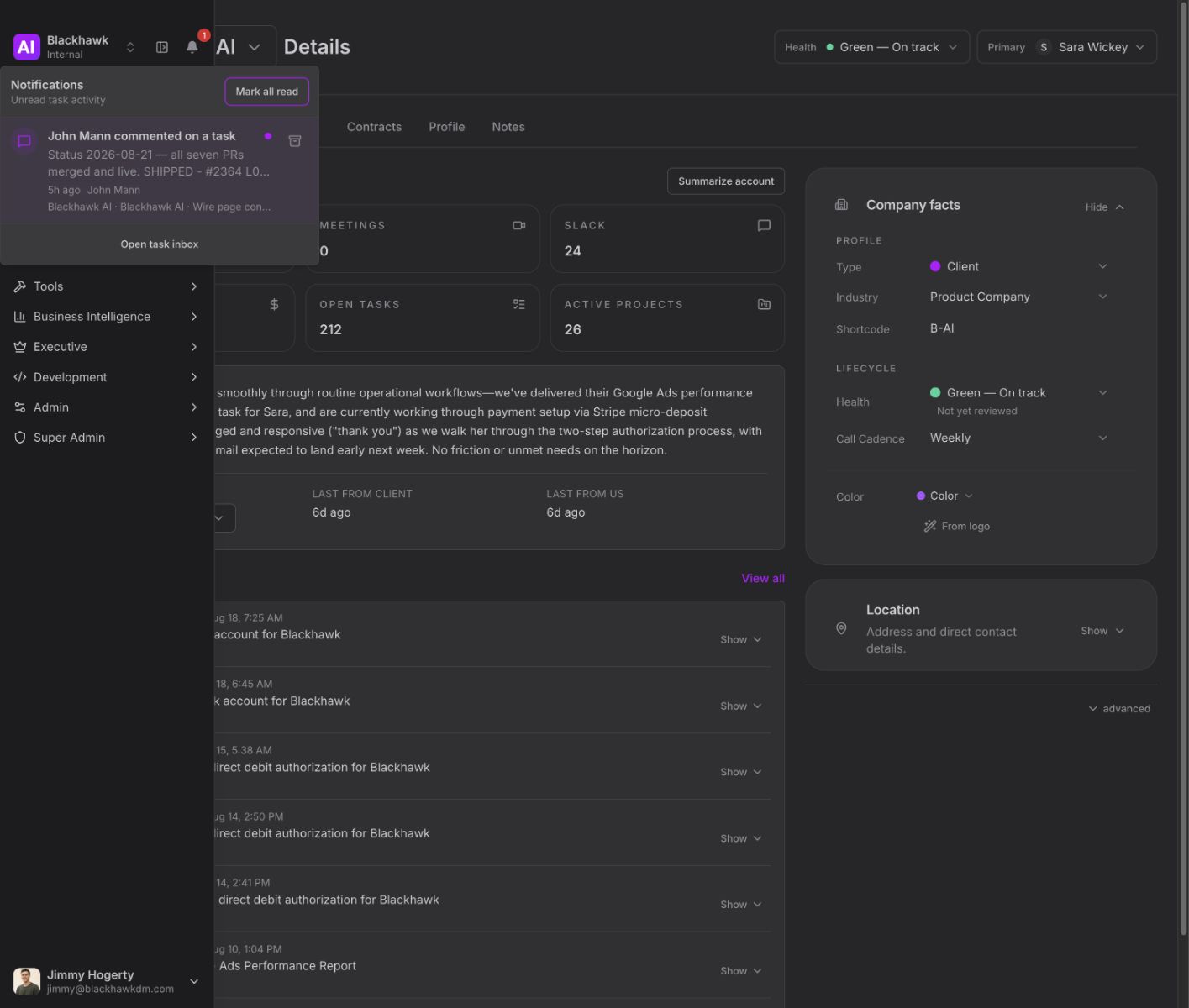
The bell sits at the top of the left sidebar and carries a red count when you have unread task activity. Open it and you get your most recent unread items — the eight newest — under the heading Notifications, with Unread task activity beneath it.
Each item is clickable: clicking one marks it read and opens the task it's about, so the bell is a way into your work rather than a list to admire. Mark all read clears the lot in one go. When there's nothing waiting, it tells you: You're all caught up.
Because opening an item marks it read, the bell stays a live picture of what still needs you. For the full record of what happened on any given task — every comment, every change — open the task itself.
Where to go next
- Comment on a task and @mention — what generates most of these.
- Tasks and views — where the work itself lives.
Open questions — draft only
- The Slack direct messages channel is a full third channel on this page, but a workspace's Slack connection is not configured from any settings page a customer can open. Covered here in one line as something to ask us about.
- The bell's list is capped at the eight most recent unread items. The article states what the reader sees rather than describing a cap.