What each org role can do
draft · 2 image slots
There are three org roles you can give a teammate: Owner, Admin, and Member. This article says what each one can do, so you can pick the right one without trial and error. If "org role" and "job role" are still blurring together, read this first.
The three roles
Owner is the top of the workspace. An Owner can do everything an Admin can, and is the only role that can make someone else an Owner.
Admin runs the workspace day to day — invites people, sets access, defines your job roles, edits workspace settings and your price book. An Admin cannot promote anyone to Owner, and cannot change an Owner's role.
Member is the working role, and the right answer for most of your team. Members do the work: clients, contracts, projects, tasks, dashboards, connections. They don't administer the workspace.
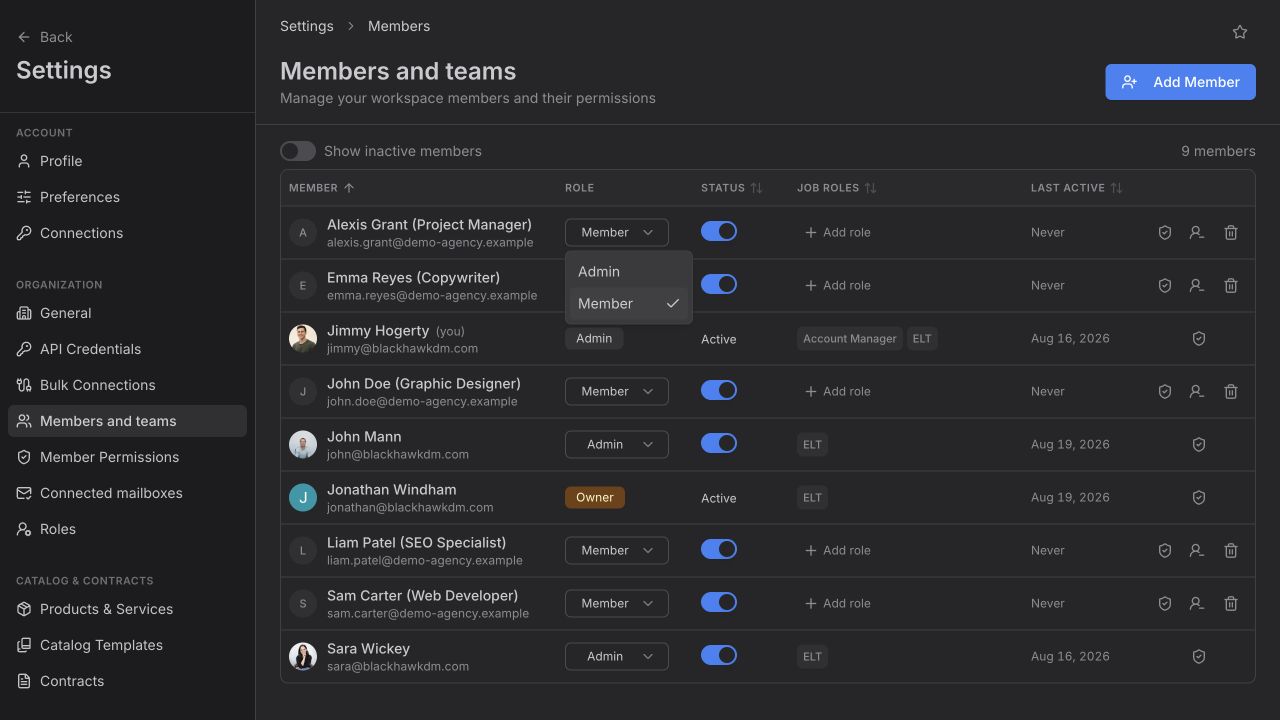
Side by side
| Owner | Admin | Member | |
|---|---|---|---|
| See Members and teams and Roles in Settings | Yes | Yes | No |
| Invite a teammate | Yes | Yes | No |
| Invite someone as Owner | Yes | No | No |
| Change another person's role | Yes | Yes, except an Owner's | No |
| Deactivate or reactivate a teammate | Yes | Yes, except an Owner | No |
| Offboard a teammate | Yes | Members only | No |
| Remove a teammate from the workspace | Yes | Members only | No |
| Create, edit, and delete job roles | Yes | Yes | No |
| Edit workspace settings and the price book | Yes | Yes | No |
| Clients, contracts, projects, tasks, dashboards | Yes | Yes | Yes |
| Set their own profile and notification preferences | Yes | Yes | Yes |
Two rules worth stating on their own, because they surprise people:
- Nobody can change their own role. Your own row shows your role as a plain badge, not a dropdown. Ask someone above you.
- An Admin cannot act on another Admin. Removing or offboarding an Admin is an Owner's job. Admins can only remove and offboard Members.
What a Member actually sees
A Member's Settings sidebar is much shorter. They see Profile, Preferences, API Credentials, and Bulk Connections — the settings that are theirs or that everyone needs for connecting client platforms. Members and teams, Roles, General, Products & Services, Contracts, and Call recording aren't listed for them.
Everything outside Settings is unchanged. A Member has the same Companies, People, Contracts, Projects, Tasks, and Dashboards you do. The difference is administrative, not operational.
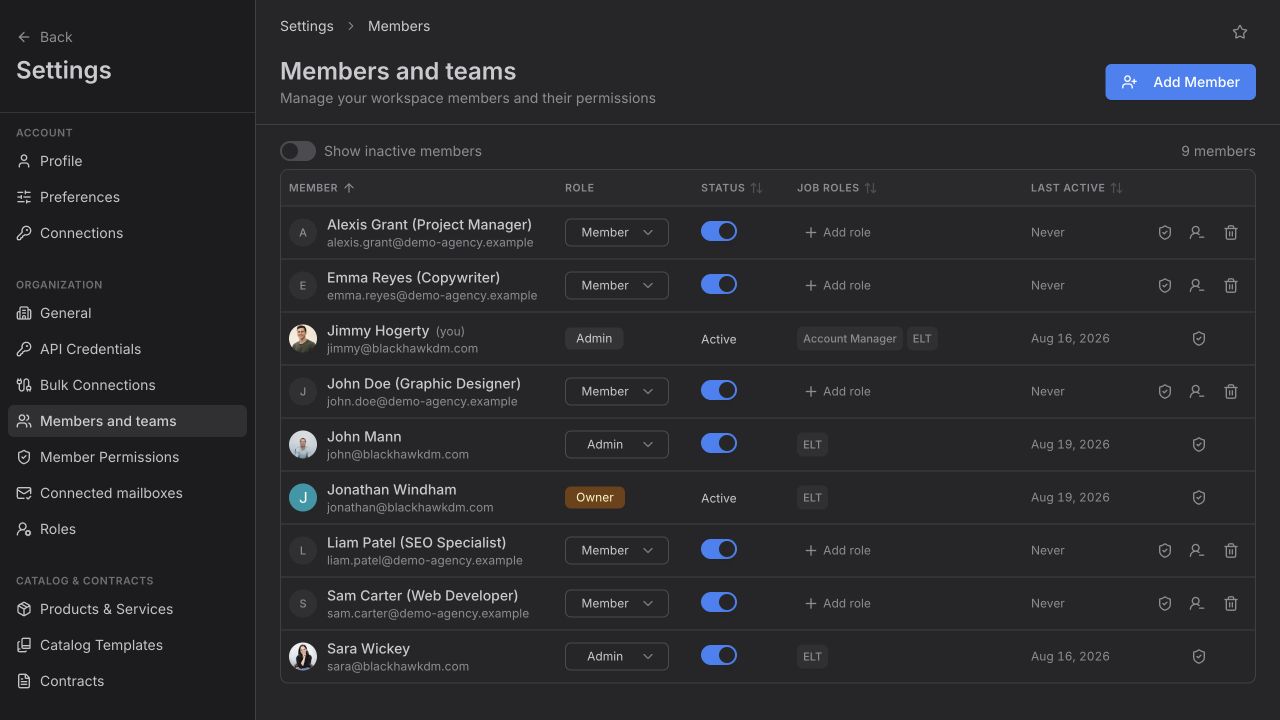
Deactivate, offboard, remove
Three different endings, and they aren't interchangeable.
Deactivate flips the Status switch on the member's row from Active to Suspended. They stay in the list and keep everything attached to them. Flip it back to reactivate. Use it for a leave of absence, or to stop access immediately while you work out the rest.
Offboard opens a guided handover for a departing teammate. It walks their tasks, projects, owned clients, contracts, and client role assignments and moves them to a successor you choose, so nothing is left pointing at someone who's gone. This is what you want when a person leaves.
Remove takes them out of the workspace. It doesn't run the handover, so offboard first if they own anything.
About "Viewer"
You may see the word Viewer in Feta. It is used for client-portal accounts, and it is not an org role you can give a teammate — it isn't in the Role dropdown, and there's no other path to it. If you want a read-only internal teammate, there isn't one today; the closest fit is Member.
Where to go next
- Invite a teammate — pick the role and send the invite.
- Set up team roles — the other kind of role.
- Job role vs. org role — the distinction, if you skipped it.
Open questions — draft only
- The reduced-nav settings map in docs/kb/02-tenant-help-center-plan.md says Members and teams and Roles are always visible in the settings sidebar. components/SettingsSidebar.tsx gates that whole group on org admin, and the Members page itself redirects non-admins to Profile. This article documents the code.
- Who may reassign job roles on a client is deliberately not covered here — that behaviour is awaiting an explicit product sign-off.