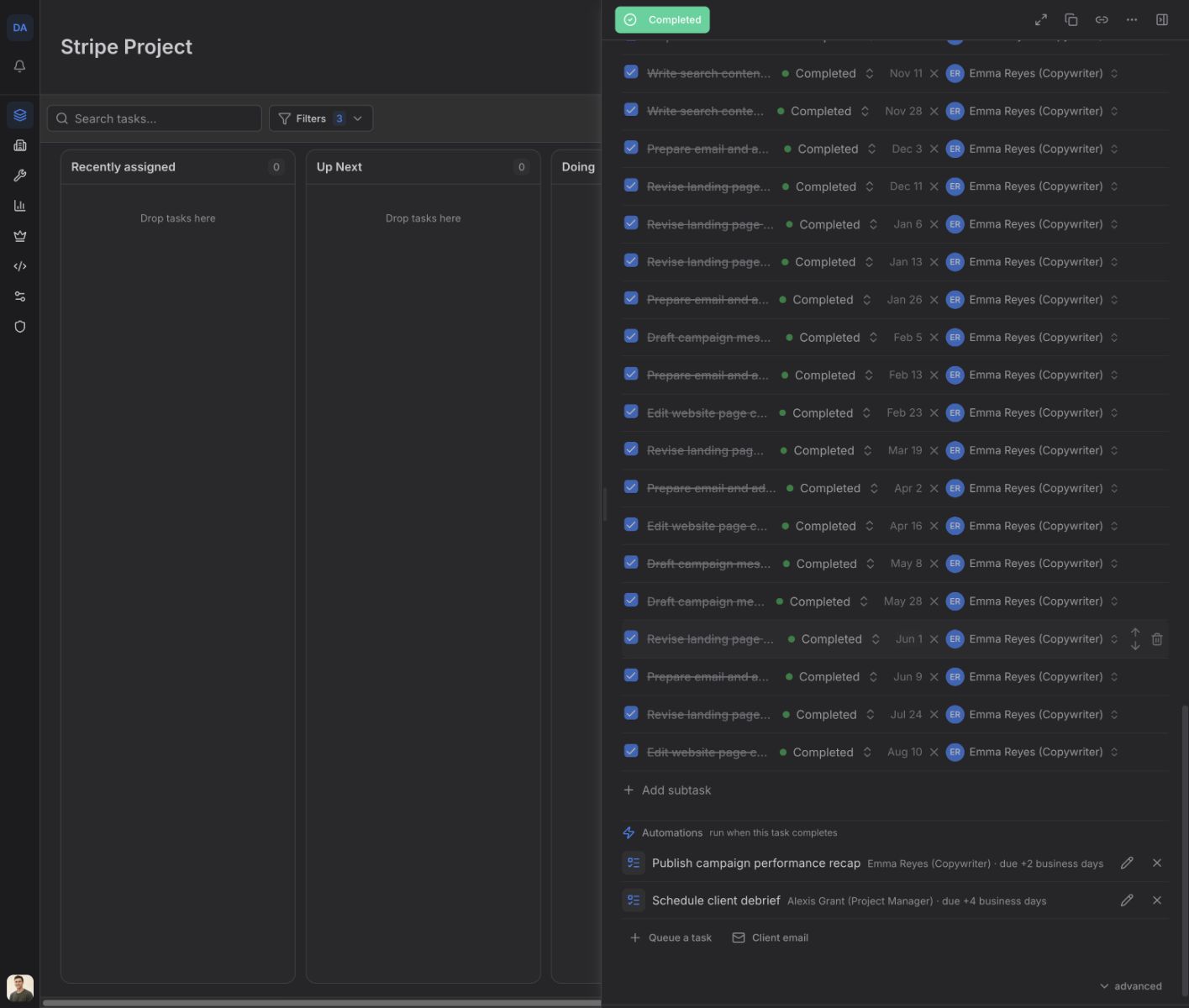
Queue a task on completion
draft · 3 image slots
Queue the next task while you are planning the current one. When the current task is completed, Feta creates the follow-up with the title, assignee, timing, and subtasks you prepared here.
Queue the follow-up
Open the task that should trigger the next piece of work. In Automations — run when this task completes, choose Queue a task. This setup lives on the task itself.
In Queue a task:
- Enter the task title and description.
- Choose Assigned to. This is who receives the follow-up when it is created.
- Set Due after deploy (business days) if the task needs a due date. Feta skips weekends; 0 makes it due on the day it is created.
- Set any priority, status, estimated time, or subtasks the follow-up needs.
- Choose Queue task.
If an existing task template fits, use Template in the sheet to fill the draft, then review the result before you queue it.
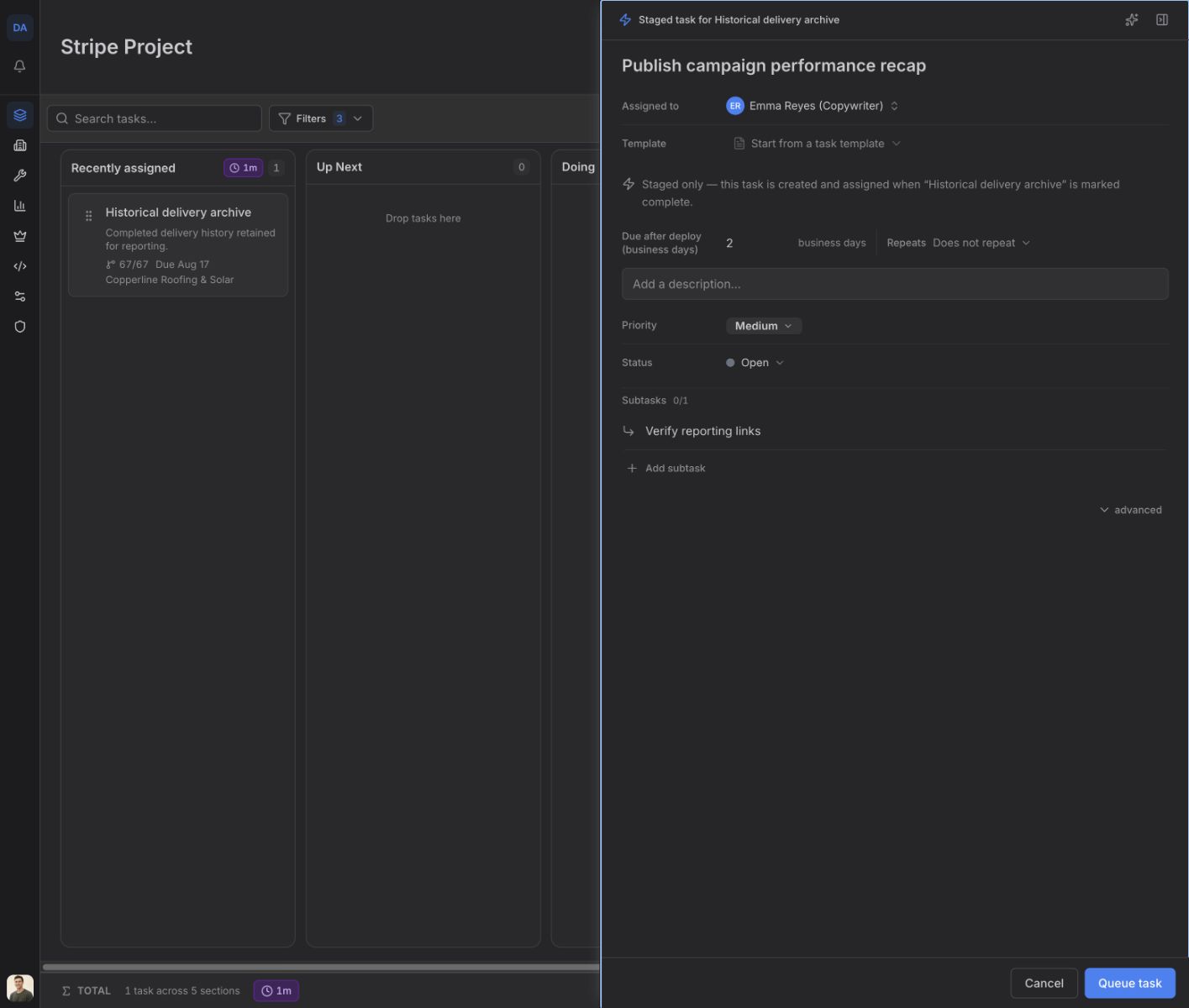
The staged row appears under Automations with its title, assignee, and due timing. You can queue more than one follow-up on the same task.
Edit the queued task before it runs
Choose the staged row or its pencil button to reopen it. Make the change and choose Save queued task. Use the X on the row to remove it.
Editing changes only the staged follow-up. It does not change the current task.
Review what happens at completion
When someone chooses Mark Complete, Feta opens Review completion automations before finishing the task. Each queued follow-up shows its title, assignee, and due timing, with a switch set to Run.
- Leave Run selected to create the follow-up.
- Switch it to Skip if it should not run this time.
- Choose Cancel completion to leave the current task open and make more changes.
- Choose Complete task to complete the current task and run the selected follow-ups.
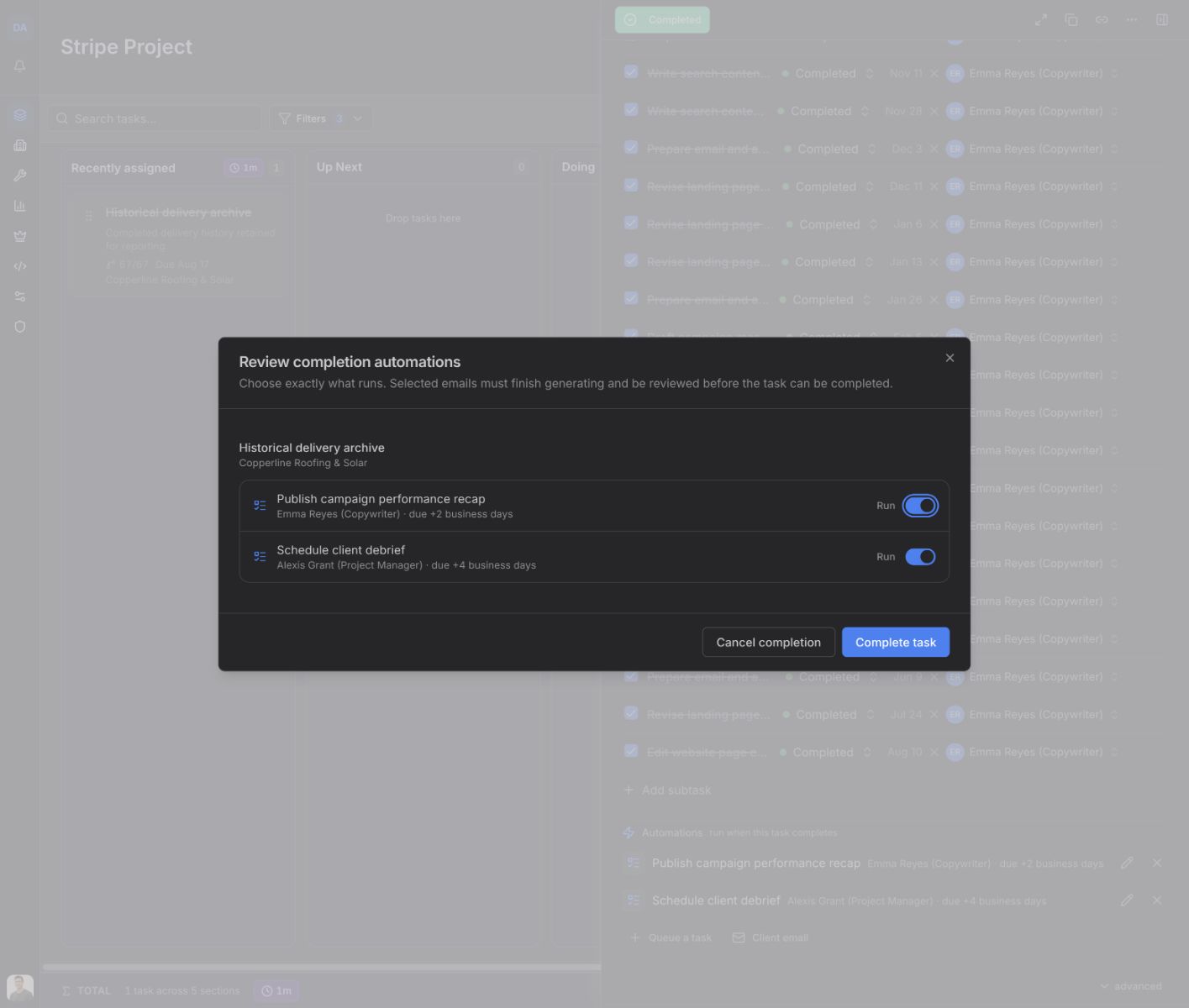
Skipping is final for that staged row: when you complete the task, Feta records it as skipped instead of holding it for a later completion. If you are not ready to decide, use Cancel completion.
Open the task that was created
After the automation runs, its row under Automations begins with Deployed:. Choose Open to go to the new task. Its due date is calculated from the completion day, and its prepared assignee and subtasks are already in place.