Add a CallRail credential
draft · 2 image slots
Save a CallRail API key for your workspace. When you finish, the credential can load CallRail accounts in Bulk Connections so you can map them to the right companies.
CallRail is the only platform supported on the API Credentials page today.
Add the credential
Have the full CallRail API key ready, then:
- Go to Settings → API Credentials.
- Select Add credential.
- Leave Platform set to CallRail.
- Enter a Label your team will recognize.
- Paste the full key into API key.
- Optional: use Restrict to client if this key should connect only one client. Otherwise leave Available to all clients selected.
- Select Add credential.
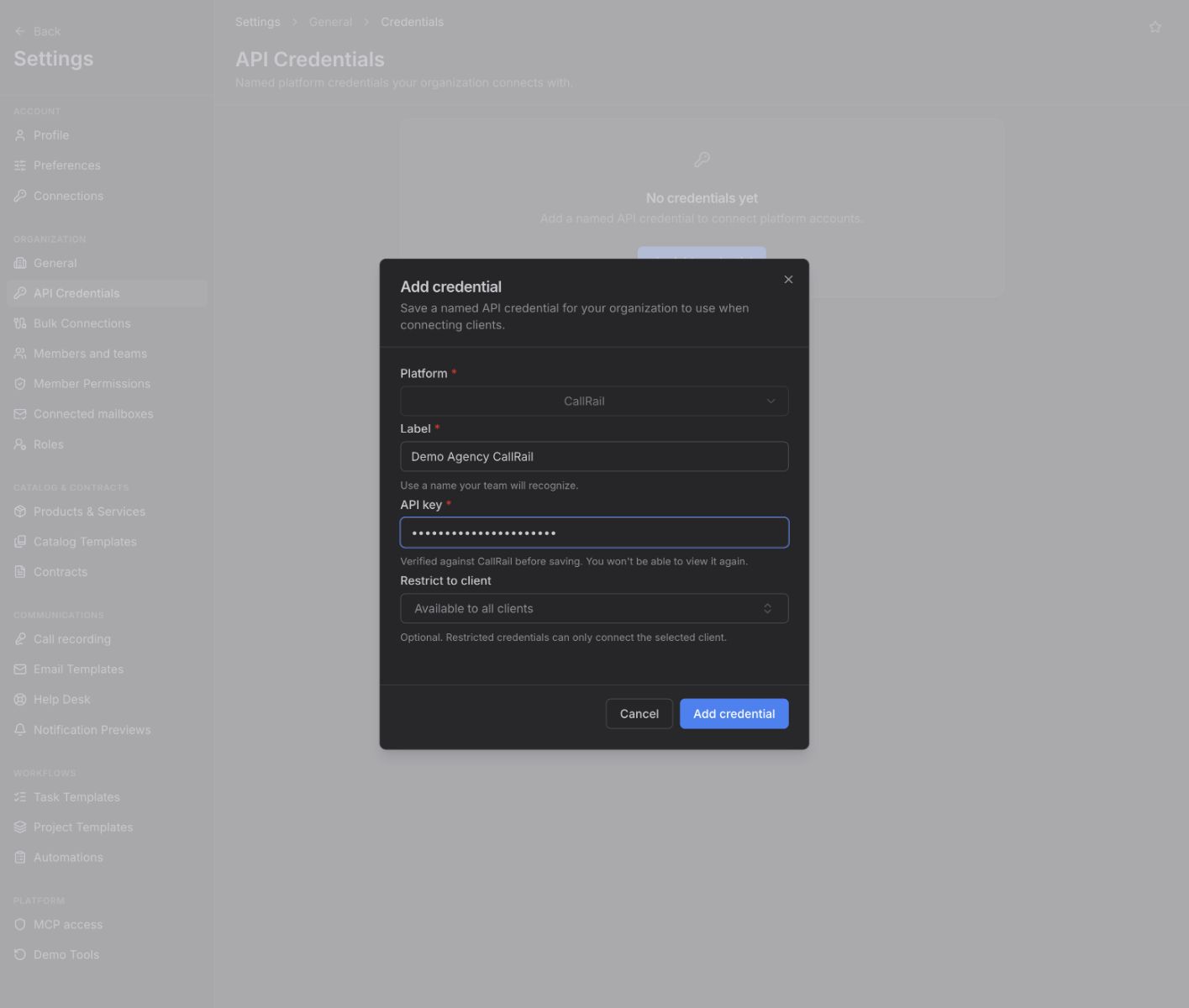
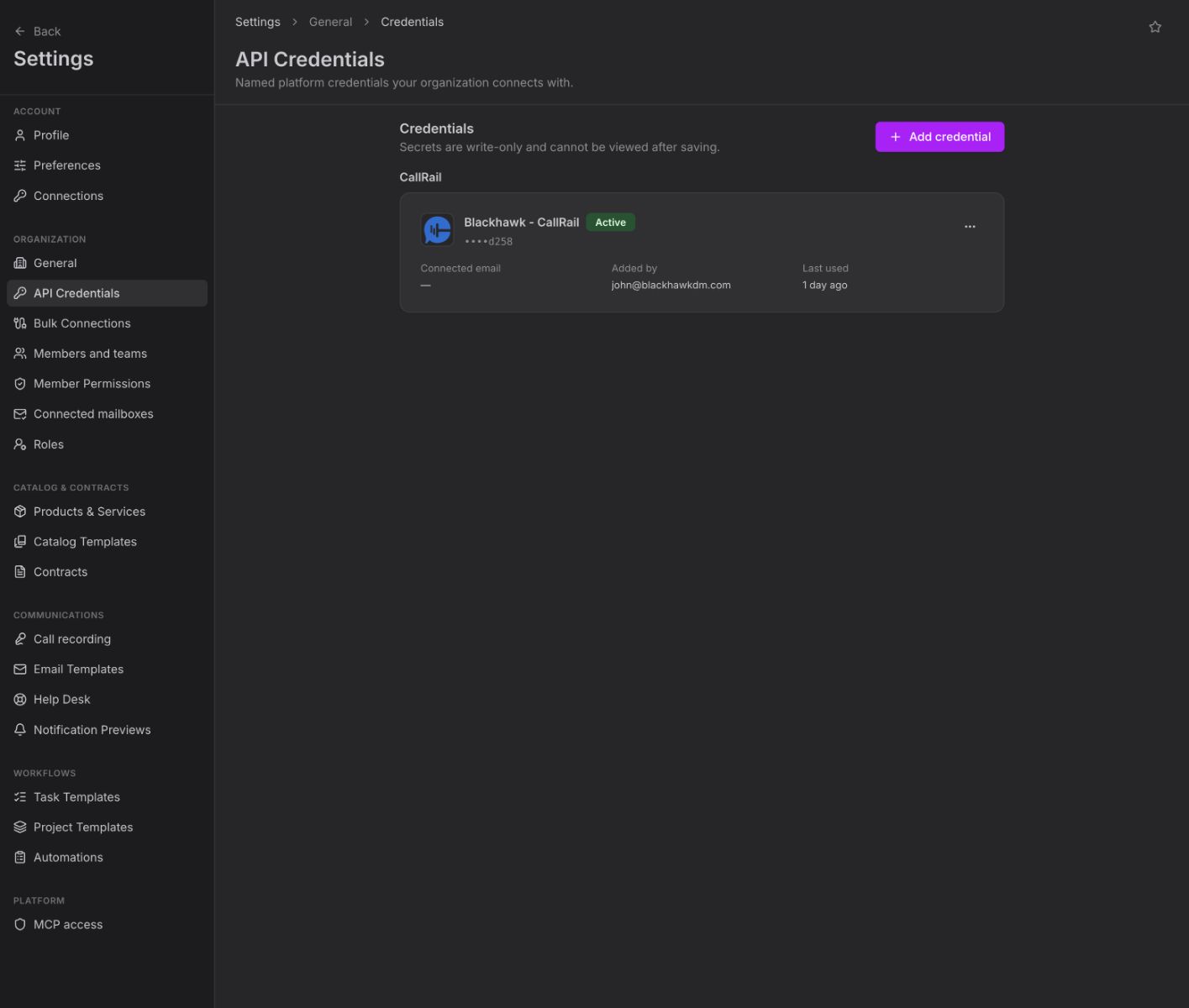
Feta verifies the key against CallRail before saving it. After it is saved, the credential appears with an Active badge. The key itself cannot be viewed again.
What it unlocks
Go to Settings → Bulk Connections and choose CallRail. Select the saved credential under CallRail credential to load the CallRail account list for that batch.
A client-restricted credential can be used only on that client's row. A credential available to all clients can be used across the batch. Once a company is connected, CallRail data can contribute to that company's rollup card on Dashboards → Overview; there is no separate CallRail dashboard in your workspace.
What syncs
Saving the credential does not connect a company by itself. After you map a company to a CallRail account in Bulk Connections, its CallRail lead activity can feed that company's CallRail rollup card on Dashboards → Overview.
If the credential breaks
If Feta can no longer use the key, its badge changes to Key invalid — replace. Open the credential's actions menu, choose Replace key, paste the new key, and select Replace key. The replacement is verified before it is saved.
Other actions in the same menu are:
- Rename — change the label without changing the key.
- Disable — stop the credential from being used in Bulk Connections. Choose Enable to make it available again.
- Delete — remove it from the workspace.
If Bulk Connections says no CallRail credential is available, return here and enable an existing credential or replace its invalid key.