Bulk-connect companies
draft · 2 image slots
Connect several companies to platform accounts without opening each company one at a time. When you finish, each saved mapping belongs to the company row you chose.
Choose a platform with a useful payoff
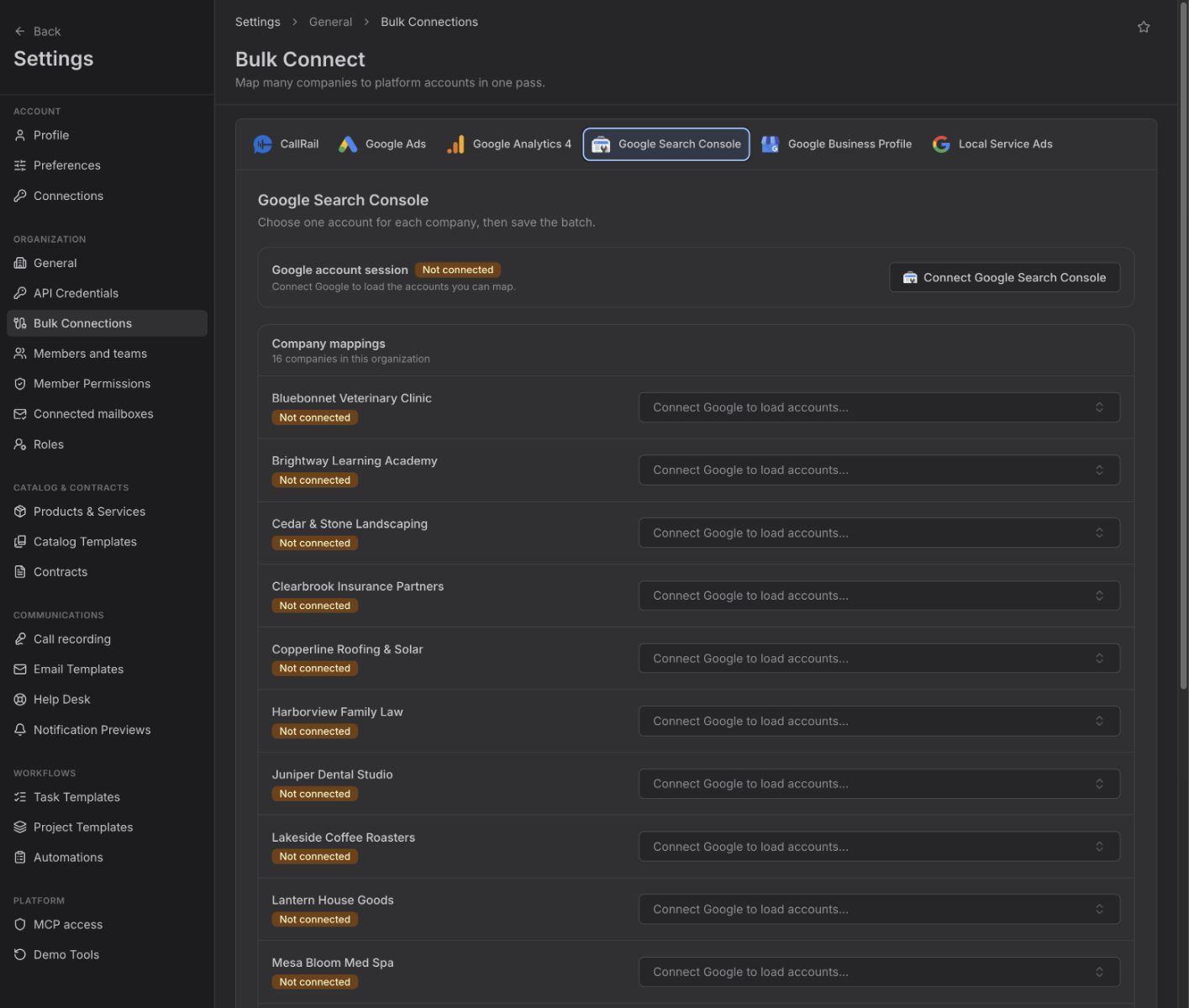
Bulk Connect offers CallRail, Google Ads, Google Analytics 4, Google Search Console, Google Business Profile, and Local Service Ads. For your workspace, the visible reporting payoff is not the same for all six:
| Platform | What you can use afterward |
|---|---|
| Google Analytics 4 | Dashboards → Google Analytics and the Overview rollup |
| Google Search Console | Dashboards → Search Console and the Overview rollup |
| CallRail | The CallRail rollup card on Dashboards → Overview only |
| Google Ads | No dashboard payoff for you today |
| Google Business Profile | No dashboard payoff for you today |
| Local Service Ads | No dashboard payoff for you today |
Connecting Google Ads, Google Business Profile, or Local Service Ads may save the mapping, but it does not give you a dashboard you can open today.
Connect the accounts
- Go to Settings → Bulk Connections.
- Choose the platform from Platforms.
- Authenticate the account list:
- For CallRail, choose an active CallRail credential. Add one under Settings → API Credentials first if needed.
- For a Google platform, select Connect Google, complete sign-in, and return to Feta.
- Under Company mappings, choose one platform account for each company you want to connect.
- Review every row marked Pending.
- Select Save n changes.
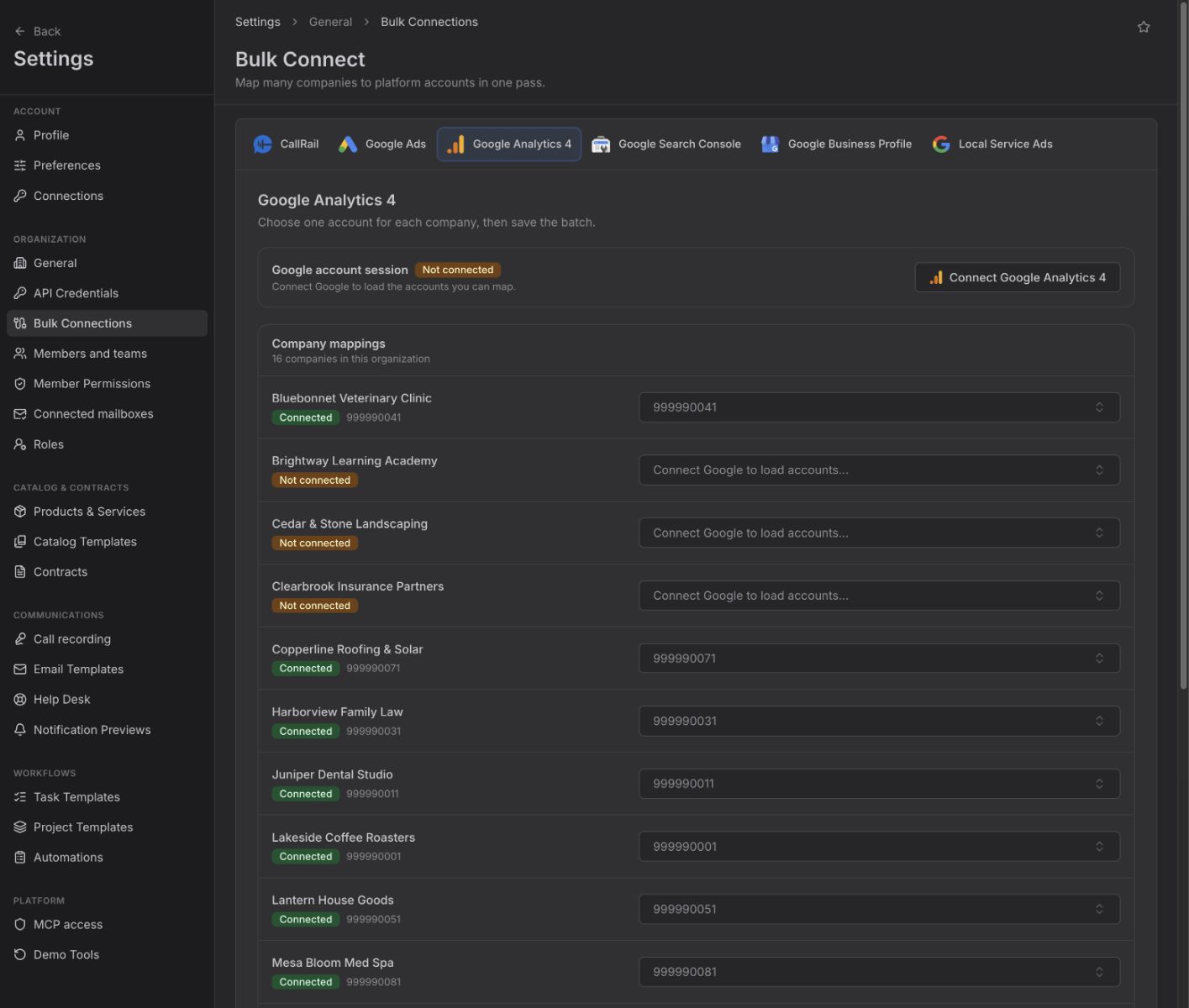
Feta reports successful rows as Connected. A failed row stays in the batch so you can correct and retry it without remapping the successful rows.
What syncs
Bulk Connect saves the same company-to-account connection you would create from a single company's Profile → Integrations section. For GA4 and Search Console, saving a new mapping also starts the initial history sync. CallRail uses the selected credential to link the company to its CallRail account.
Switching platforms discards unsaved changes, so save or deliberately select Discard before you move to another platform.
If a batch will not save
Fix the message shown on the affected row or above the save button:
- This account is selected for more than one company. Choose a different account on one of the highlighted rows. Feta will not save duplicate account assignments.
- Failed — read the row's error, correct that mapping, and save again. Successful rows from the first attempt remain connected.
- Key invalid — replace it in Settings → API Credentials — replace the CallRail key, then return and reload the account list.
- This connected account is not available in the current session. Reconnect the account session that can access it, or choose another available account.
- The save button says the batch is too large — reduce the pending batch to 100 changes or fewer, save it, then continue with the next batch.