Send a client email on completion
draft · 3 image slots
Prepare the client update while the work is still in context. Feta holds the reviewed draft on the task, asks for one final approval at completion, and then sends that exact update as the task is finished.
Add the client email
Open the task that should trigger the message. The task must be linked to a client company with at least one contact who has an email address. In Automations — run when this task completes, choose Client email. This setup lives on the task itself.
If the task is not linked to a client company, Feta explains: Link this task to a client company to email contacts. Add the company to the task, then return to Client email.
Choose how the message starts
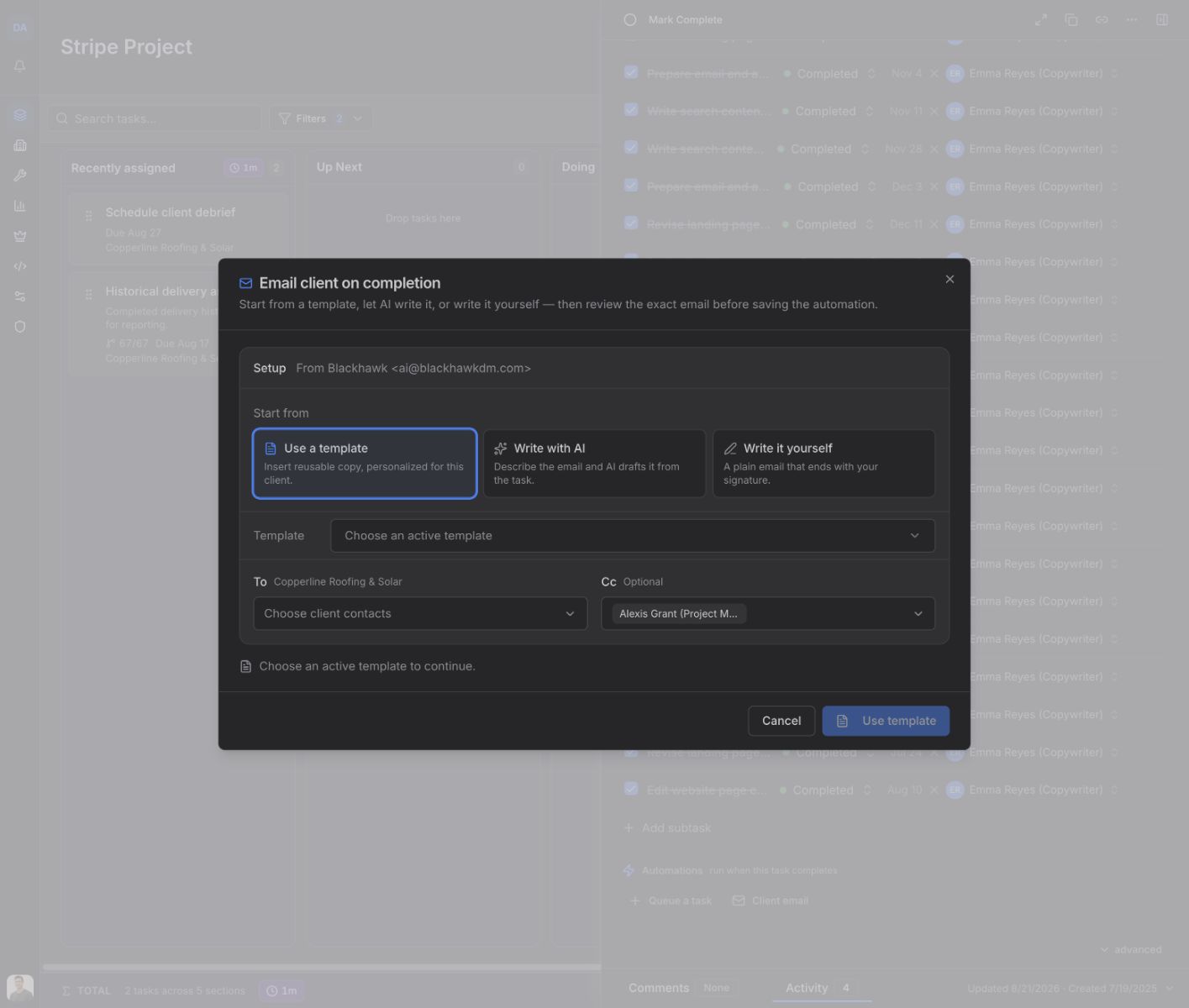
The Email client on completion dialog offers three choices under Start from:
- Use a template inserts an active email template and personalizes its saved copy.
- Write with AI drafts from your instructions, the task, its subtasks, and recent comments.
- Write it yourself starts a plain email with your signature.
Choose at least one client contact in To. Cc is optional and can include other client contacts or members of your team. Then choose Use template, Write with AI, or Start writing, depending on the starting point you selected.
Review the draft now
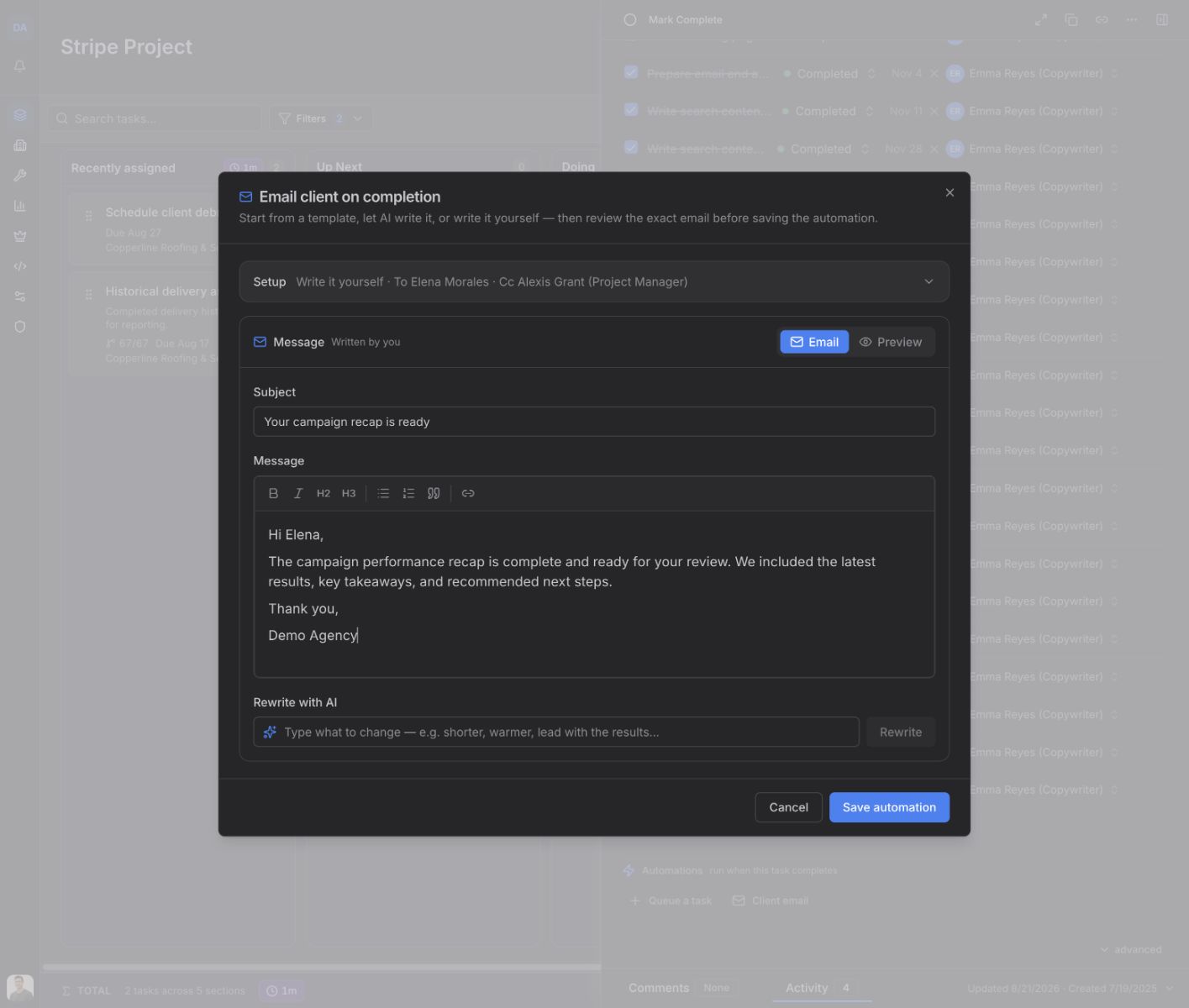
Read the Subject and Message. Edit either one directly. Use Preview to check the final layout, or enter a specific instruction under Rewrite with AI when the copy needs a targeted change.
If you change recipients after the draft is written, Feta asks you to review the greeting again. When the message is ready, choose Save automation.
The Automations section now shows Client completion email and the selected To: names. Choose the row or its pencil button to edit it; use the X to remove it.
A task can hold one client email automation. After one is saved, Feta shows Only one client email can be queued per task. Edit or remove the existing one instead of adding another.
Approve the exact email at completion
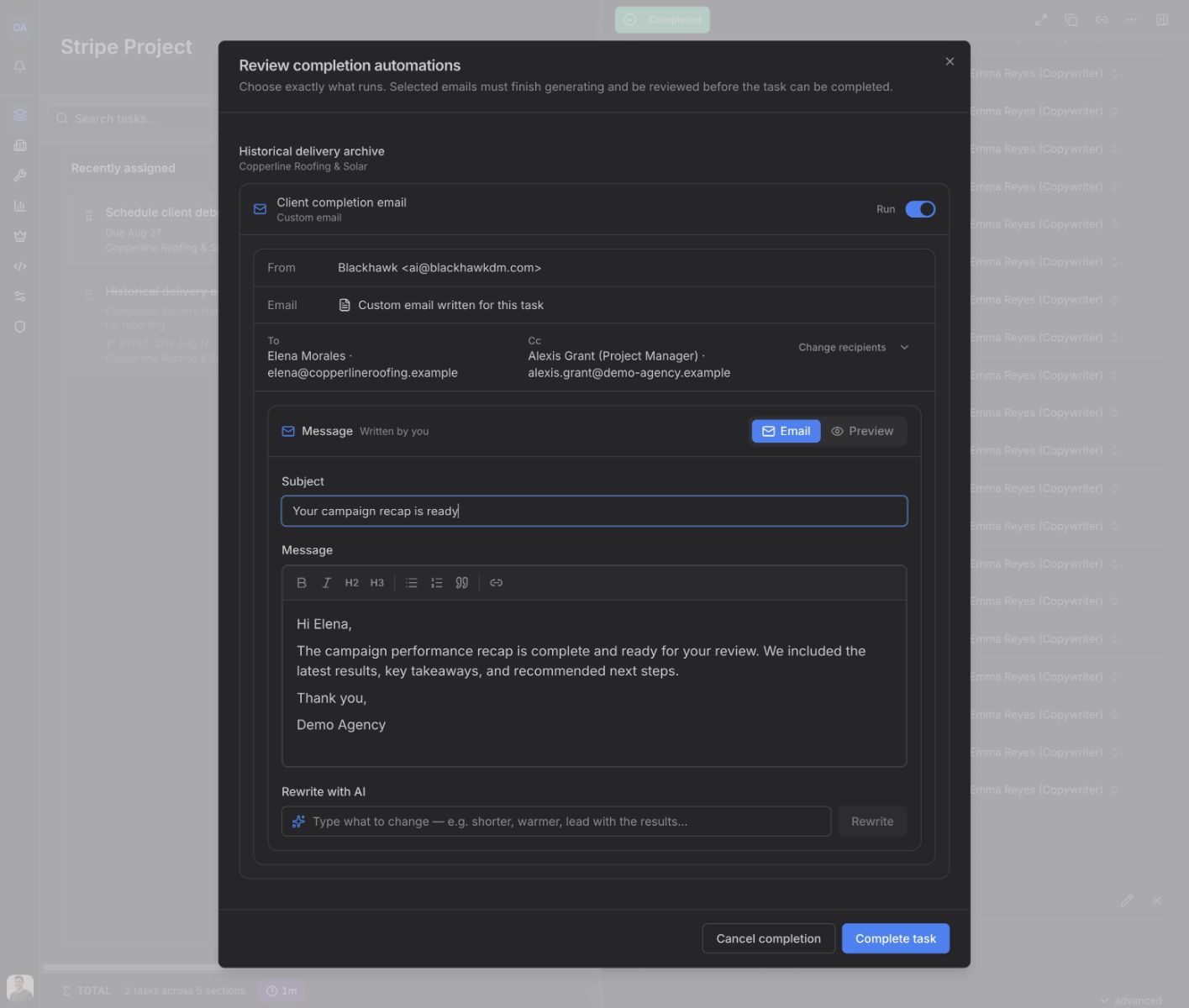
When someone chooses Mark Complete, Feta opens Review completion automations. The client email is set to Run and shows its sender, source, To, Cc, subject, and message.
At this final checkpoint you can:
- choose Change recipients, then Done editing
- edit the subject or message and check Preview
- use Rewrite with AI with a specific instruction
- leave the switch on Run, or change it to Skip
The task remains open while an email draft is being prepared. If the client is paused, the dialog also tells you to review the email carefully or skip it.
Choose Cancel completion to leave the task open without sending. Choose Complete task to finish the task and begin sending the approved email. If you select Skip and complete the task, that staged email is recorded as skipped and will not send on a later completion.
After the email is sent, the automation row on the completed task begins with Sent:. That gives the team a clear record that the completion email ran.