Attach a file to a task
draft · 1 image slots
Attach the working file to its task so the next person does not have to hunt for it. You can add, rename, or remove the file from the task detail panel.
Add the file
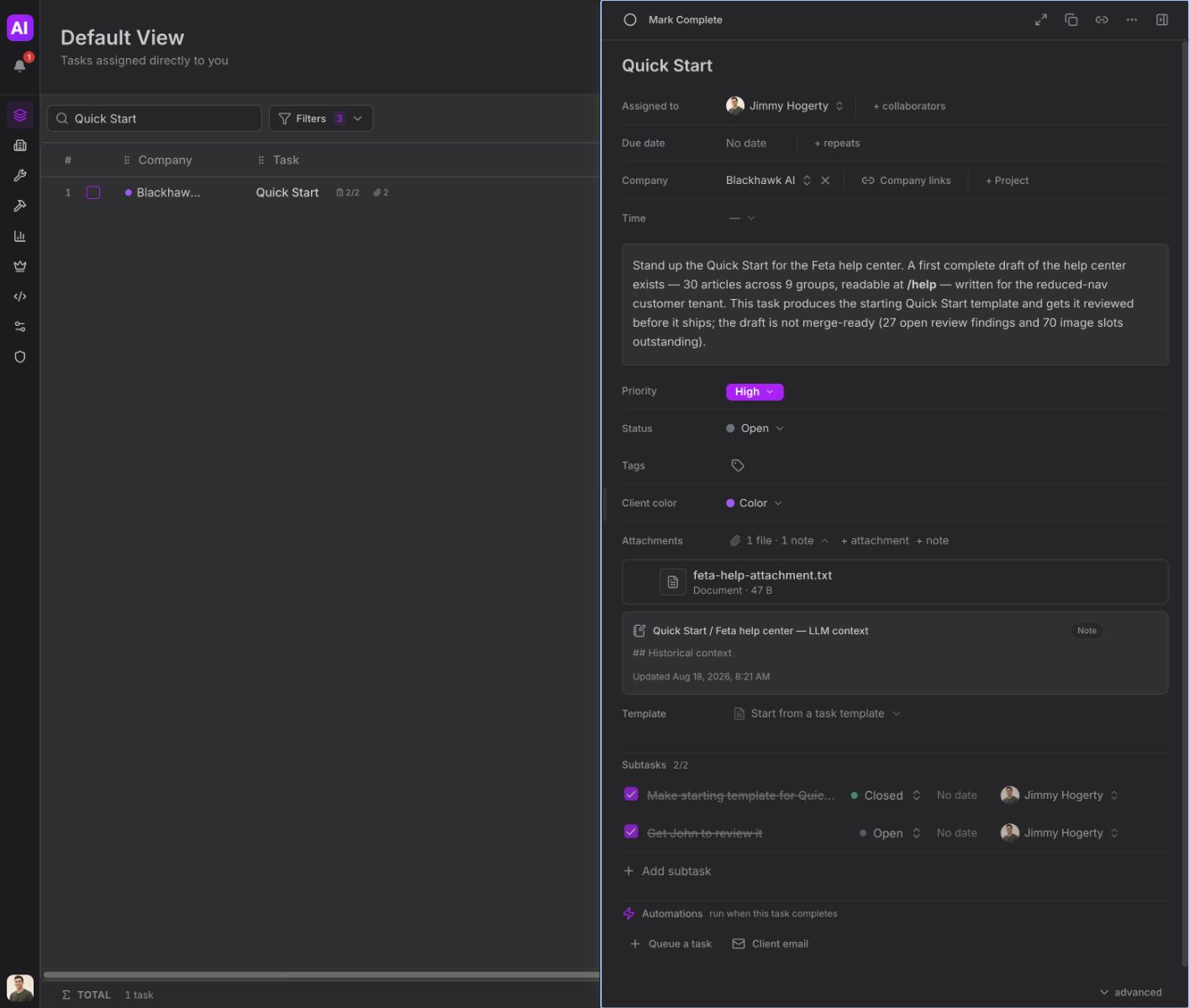
Open the task from Tasks. On the Attachments row, choose + attachment, select one or more files, and wait for the upload to finish. The row expands to show the files on the task.
Rename or remove it
Hover over the file row and choose Rename. Enter the new filename, then press Enter or choose the checkmark. Press Escape or choose the X to cancel.
To remove a file that is still pending, hover over it and choose Remove. For an uploaded file, choose Delete, then confirm Delete in the Delete Attachment? dialog.