Fix a dashboard with no data
draft · 2 image slots
An empty dashboard usually comes down to scope, dates, connection, or hidden widgets. Work through this checklist in order; by the end, you will either restore the report or have the exact state to send to support.
1. Confirm the company and dates
At the top of the dashboard, choose the company you meant to review. If the page says Select a client to connect, no company is selected yet.
Open the date control and choose a period when the site had known activity. Read the exact start and end dates beside the control. A comparison adds context, but it does not change which dates populate the current-period cards.
2. Read the empty-state message
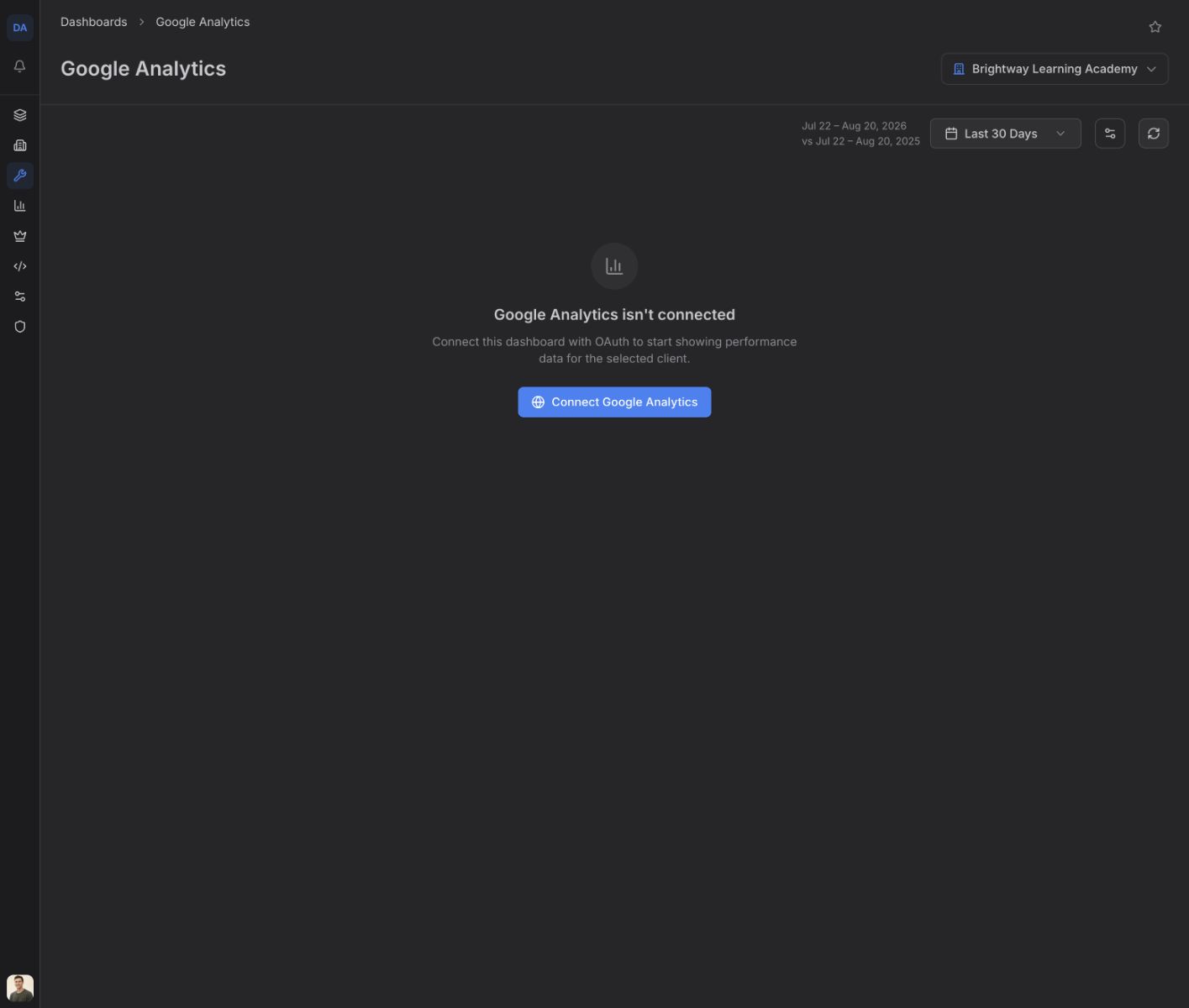
If the page says Google Analytics isn't connected, choose Connect Google Analytics.
If it says Search Console isn't connected, choose Connect Search Console.
Complete the Google sign-in, then choose the Google Analytics property or Search Console property that belongs to this company.
3. Check the company connection
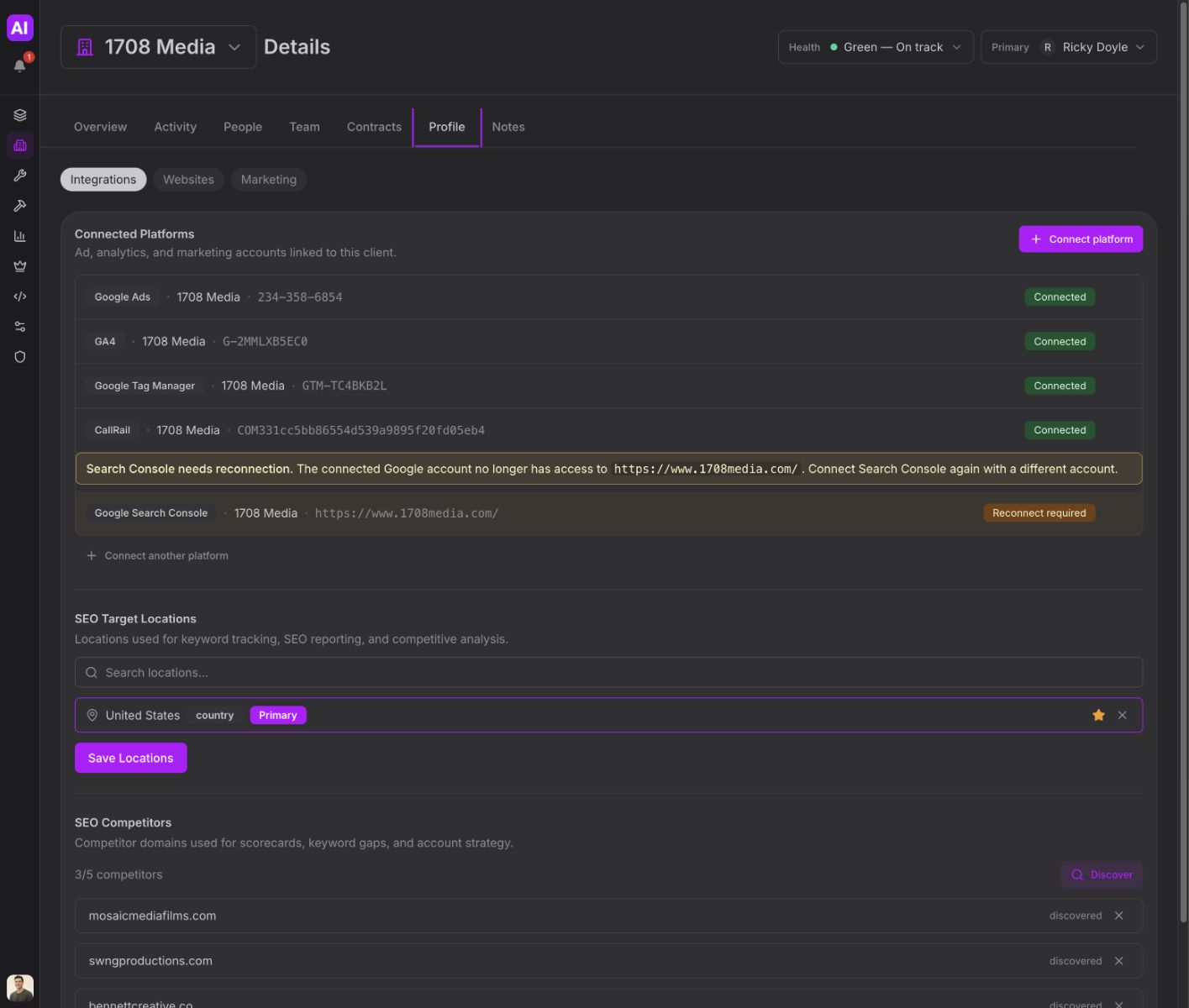
Open Companies, choose the company, then go to Profile → Integrations. Find Google Analytics 4 or Google Search Console under Connected Platforms.
- Connected means an account or property is attached. Check that the name and identifier match the company you selected on the dashboard.
- Reconnect required means the saved Google connection needs attention. Open the platform's options menu and choose Reconnect with Google.
- Setup incomplete means the platform record is missing part of its setup. Open the options menu and choose Change connection, then select the correct account or property.
If the wrong account is attached, use Change connection instead of creating another company.
4. Restore hidden widgets
If the page says All widgets are hidden, choose Customize Dashboard and turn on at least one widget. The connection may be fine; the selected company's saved layout is simply hiding every section.
5. Fix PageSpeed by itself
PageSpeed Insights is separate from Search Console reporting.
- If it says no website URL is configured, open Profile → Marketing → Website on the company record and add the site URL.
- If it says Test Failed, choose Run Test again. If a cached result is present and you need a new test, choose Force Refresh.
If the dashboard is still empty
Send support the company name, dashboard name, exact date range, and the connection badge shown under Profile → Integrations. Also say whether the dashboard shows a connection message, an error, zero-valued cards, or All widgets are hidden. Those four states have different fixes.
Related articles
Open questions — draft only
- How long should a newly connected Google Analytics or Search Console account take to show its first dashboard data?