Comment on a task and @mention
draft · 2 image slots
Comments keep a decision beside the task it belongs to. By the end, you will have posted a comment, notified a teammate with an @mention, and responded with a reply or reaction.
Post a comment
Open the task from Tasks and choose Comments. Type in Add a comment... (drop files, Cmd+Enter to send), then choose Send.
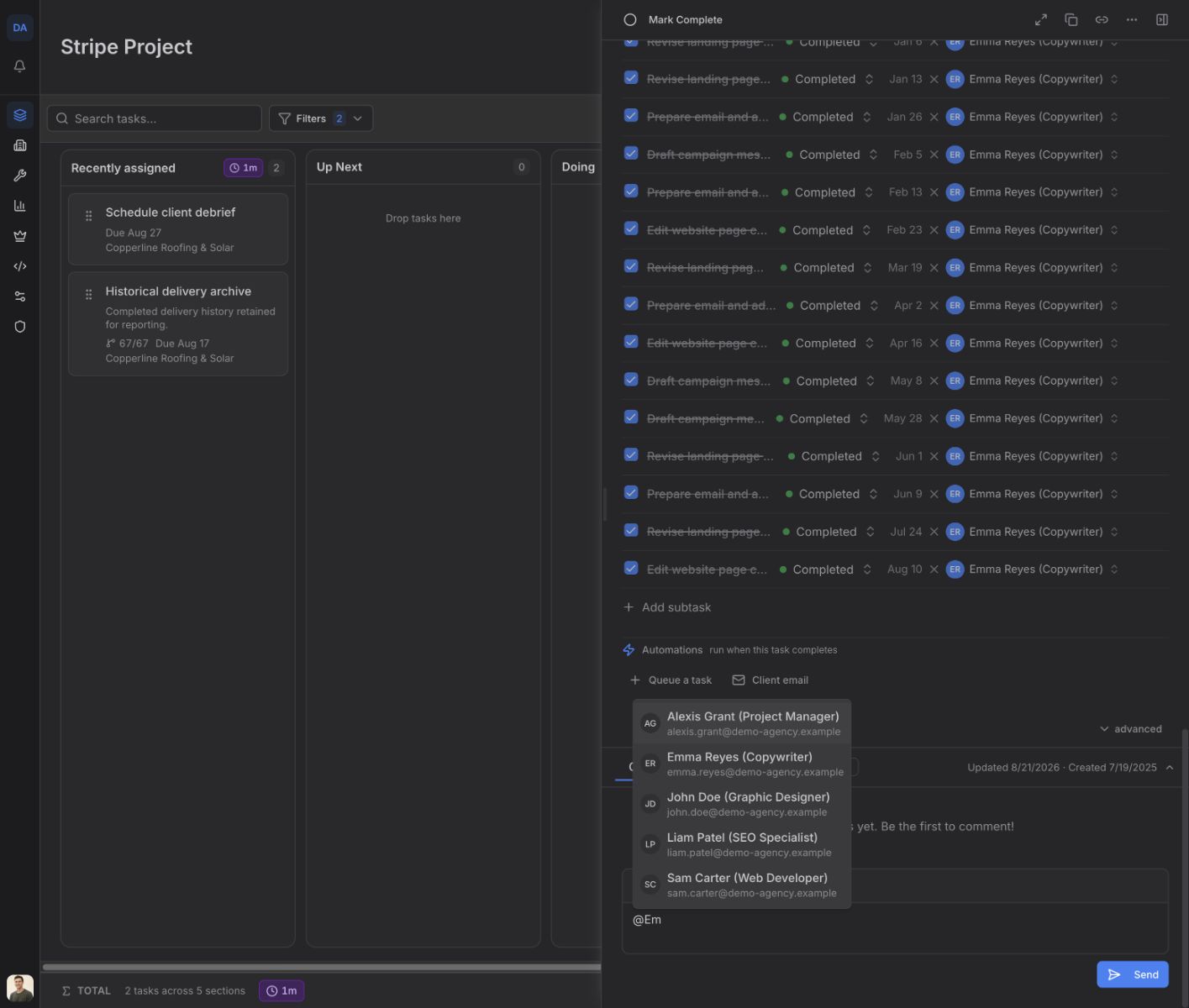
To notify a teammate, type @ and begin their name. Select the person from the suggestions so
their name becomes a real mention, then send the comment. Feta notifies the teammate you selected.
Reply in the thread
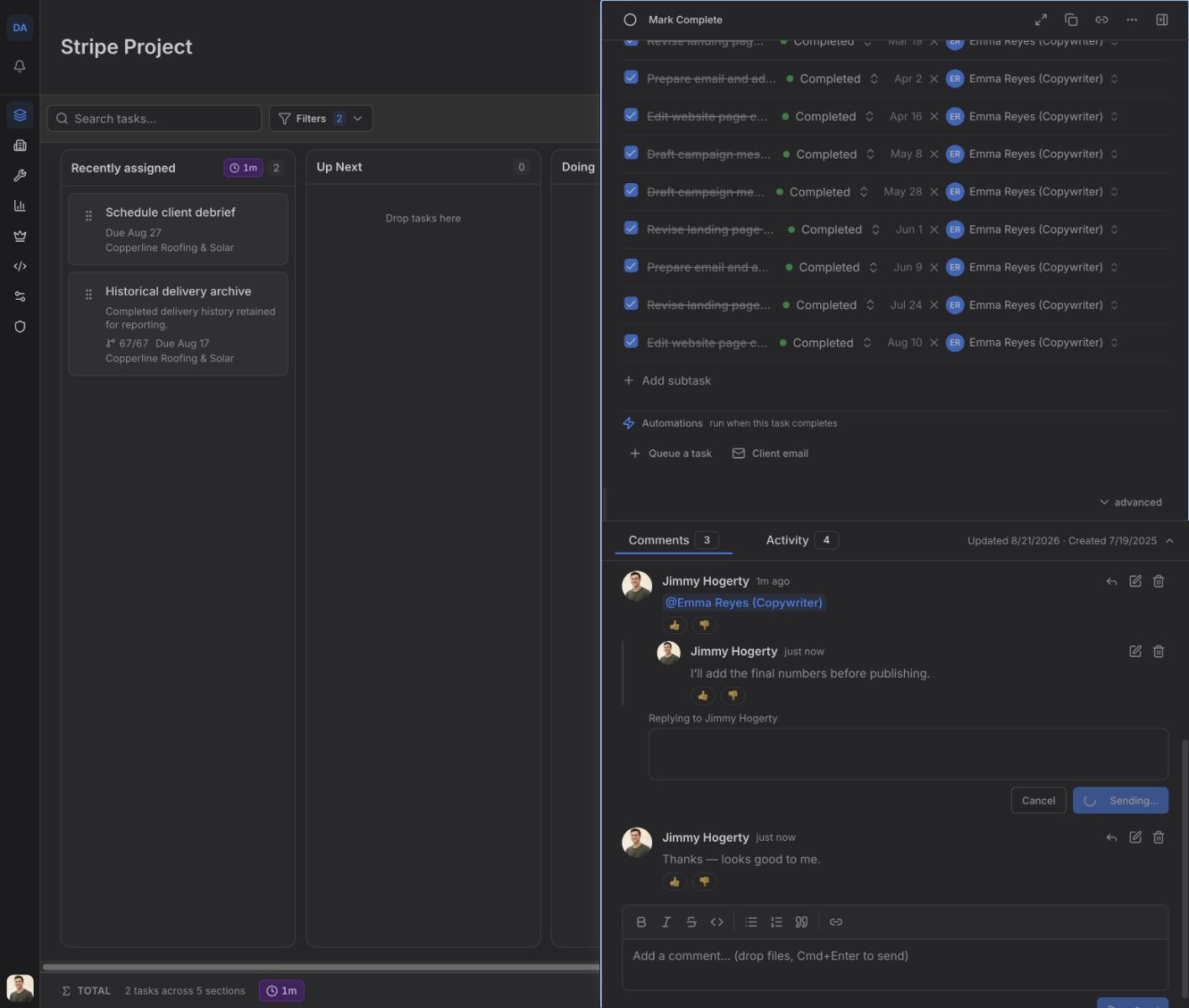
Choose the reply-arrow button on the original comment. Feta opens Replying to followed by the author's name. Write your response and choose Reply. Replies stay grouped under the original comment so the discussion remains easy to follow.
Use the two reaction choices
Every comment has exactly two reactions: Thumbs up and Thumbs down. This is a fixed two-option toggle, not an emoji picker.
Choose a thumb to add your reaction. Choose the other thumb to switch, or choose your active thumb again to clear it. The number beside each thumb shows how many people chose it.