Tasks and views
draft · 4 image slots
Tasks is the daily work surface in Feta. By the end of this guide, you will know how to find the right work, update it without leaving the list, organize subtasks, save a repeatable view, and change several tasks at once.
Start with the right view
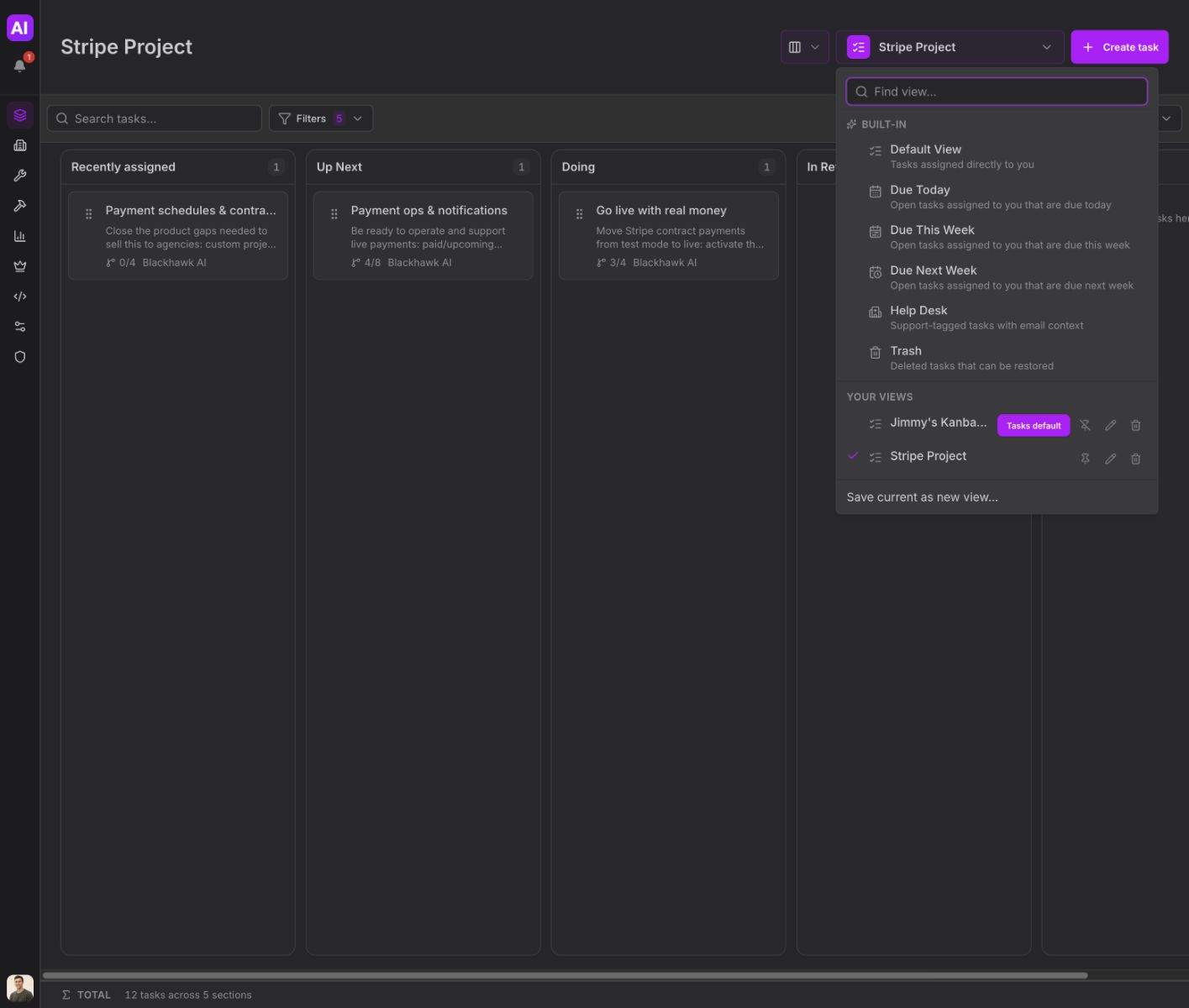
Open Tasks, then use the large view menu at the top left. Feta's built-in views answer the questions most teams ask every morning:
- Default View — open tasks assigned directly to you
- Due Today — your open tasks due today
- Due This Week — your open tasks due this week
- Due Next Week — your open tasks due next week
- Trash — deleted tasks that can be restored
When you are looking at one company's work, Company Tasks shows that company's open tasks.
The same menu can also contain Your views and Shared views. Use Find view... when the list gets long.
Work from the table
Table is the fastest layout for a working list. Each row is a task, and the visible columns are controls as well as information.
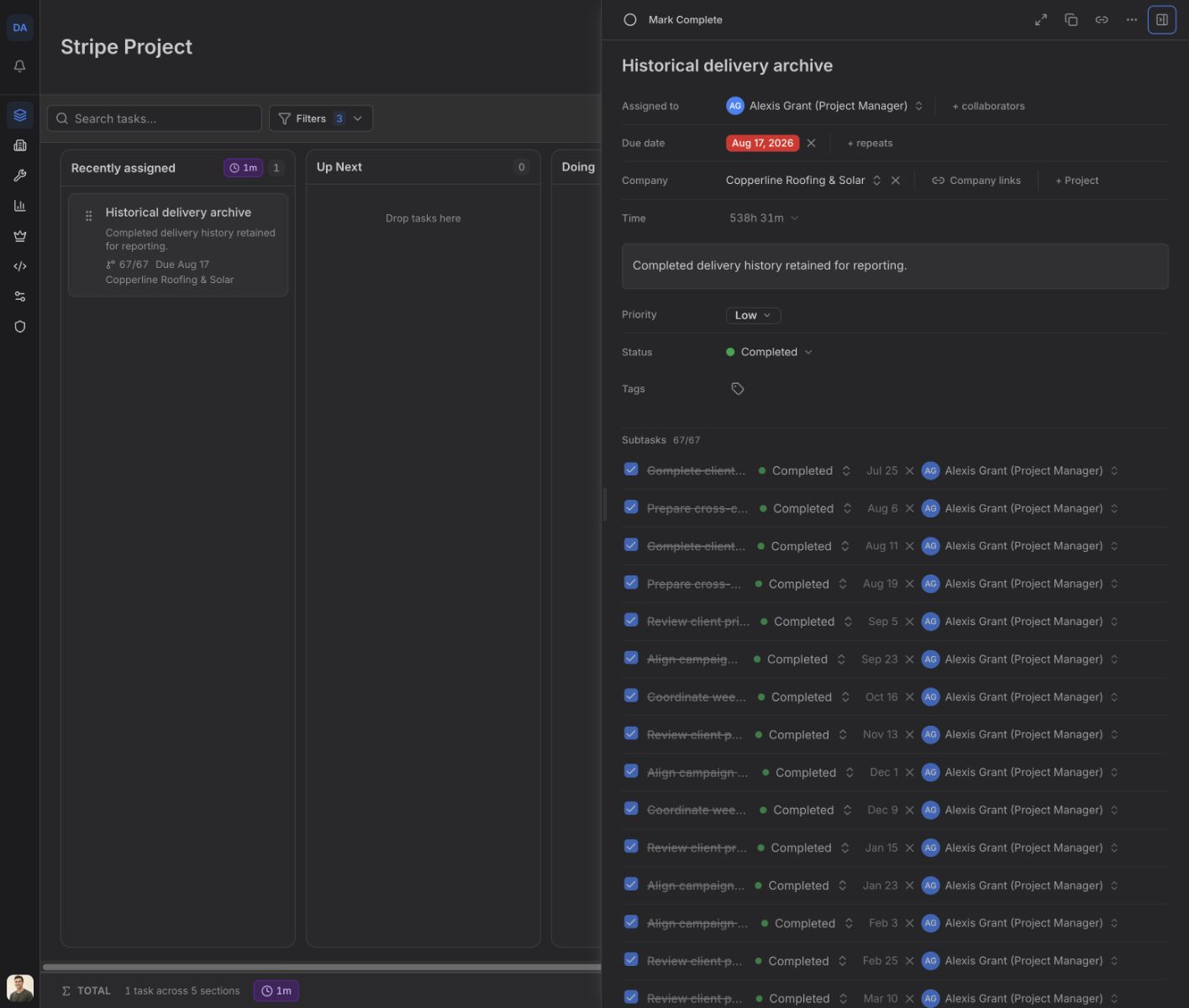
To change who owns a task, choose the name in Assigned to and pick a teammate. To change its workflow stage, choose its value in Status. Open the task when you need the full detail view; there you will find the same Assigned to and Status fields, plus the description, due date, priority, subtasks, comments, attachments, and automations.
Status and completion are related, but they are not the same action. Status records where the work sits in your process. The circle at the start of a row, or Mark Complete in the task header, records that the work is finished. Marking a task complete does not rename its status.
If another person needs to follow the work without owning it, open the task and choose + collaborators beside Assigned to.
Build and manage subtasks
Open a task and find Subtasks. Type the next piece of work into Add subtask, then choose Add. A subtask can have its own status, due date, and assignee. Use the up and down controls on the row to change its order, or choose its title to open the full subtask.
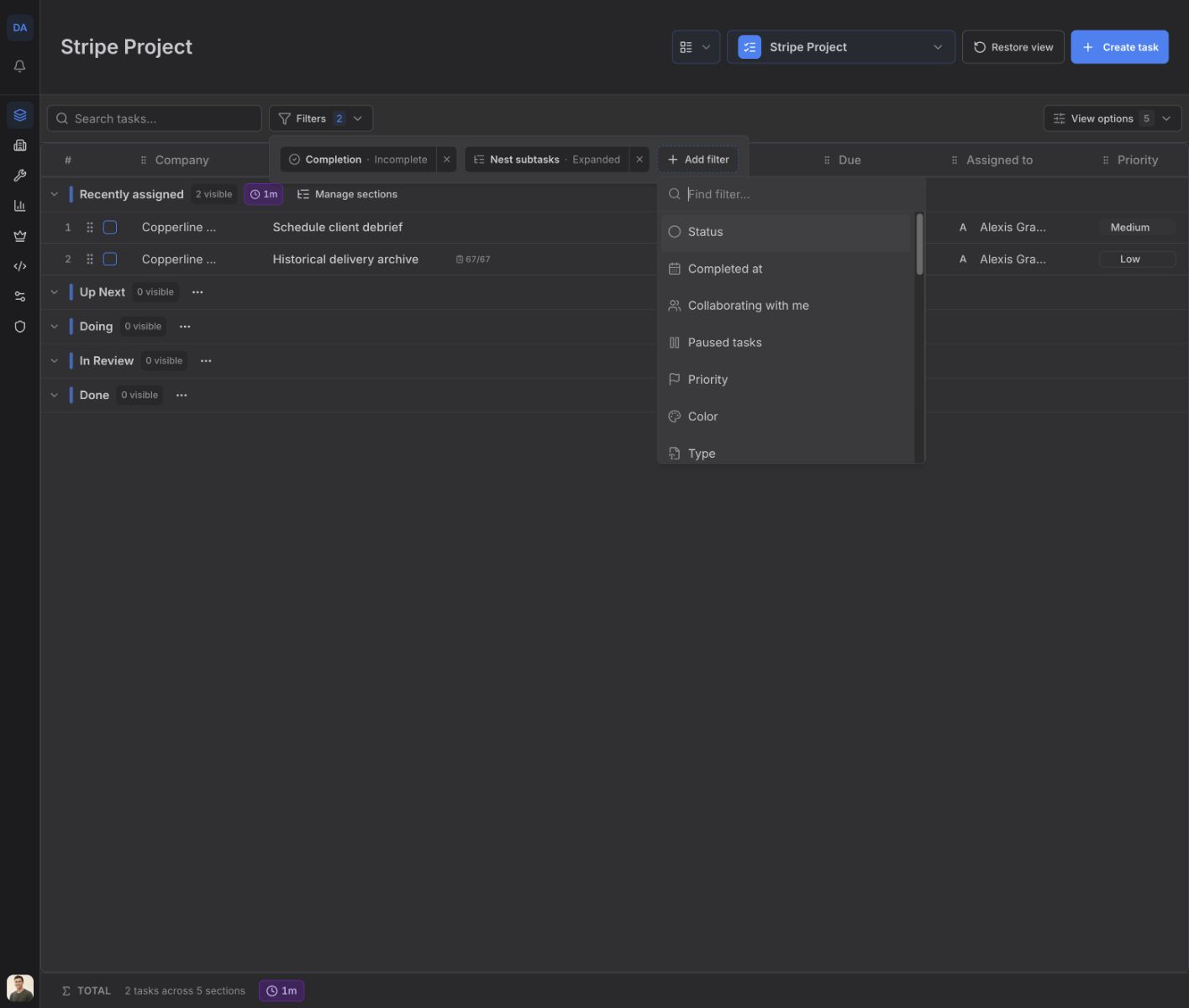
Back in the task table, subtasks can appear in three ways. Choose Add filter → Nest subtasks and select:
- Flat (alongside parents)
- Nested under parent (expanded)
- Nested under parent (collapsed)
The collapsed option keeps the list short until you expand a parent. Parent rows show completed subtasks against the total, so you can see progress without opening the task.
If you complete a parent while direct subtasks are still open, Feta asks Complete open subtasks? Choose Parent only to leave them open, or Complete all to finish the parent and its open direct subtasks together.
Narrow the list with search and filters
Use Search tasks… for a word or phrase. Use Add filter for structured questions. The most useful filters for daily operations include:
- Status, Completion, and Completed at
- Assigned to me, Assigned to, Assigned by, and Collaborators
- Company, Project, and Tags
- Due, Has due date, and Overdue
- Priority, Blocked, and Needs review
- Subtask count, Comment count, and Attachment count
Each active filter becomes a chip above the table. Choose the chip to change it, or use its remove control to take it out of the view.
Filters decide which tasks appear. Group by decides how those tasks are divided on screen. You can group by Project, Company, Status, Priority, Type, Assigned to, Milestone, or Tags. Choose None to return to one continuous list.
Use Columns to show only the fields you need. Reset to view defaults restores the column set that came with the active view.
Choose Table, Calendar, or Kanban
Use the layout control at the top of Tasks:
- Table is best for scanning and editing many fields.
- Calendar places tasks by due date and lets you move between week and month ranges.
- Kanban turns your personal sections into columns you can work across.
To set up Kanban, choose Use my sections, then Manage sections. Add, rename, delete, or reorder sections and decide whether Recently assigned should be shown. Switch to Kanban and drag a task between columns as your work moves. Your sections are your own organization; they do not replace the task's status.
Save a view you will use again
Filters, search, grouping, layout, sorting, and columns can all be part of a saved view. Set the screen up first, open the view menu, and choose Save current as new view…. Give it a clear name such as “Client approvals due this week.”
When you adjust one of your own saved views, the menu offers Update current view…. Use it only when you want the new setup to replace the saved one. Otherwise, switch away or restore the view to discard the on-screen changes.
You can also pin one of your personal views as the default that opens with Tasks.
Change several tasks at once
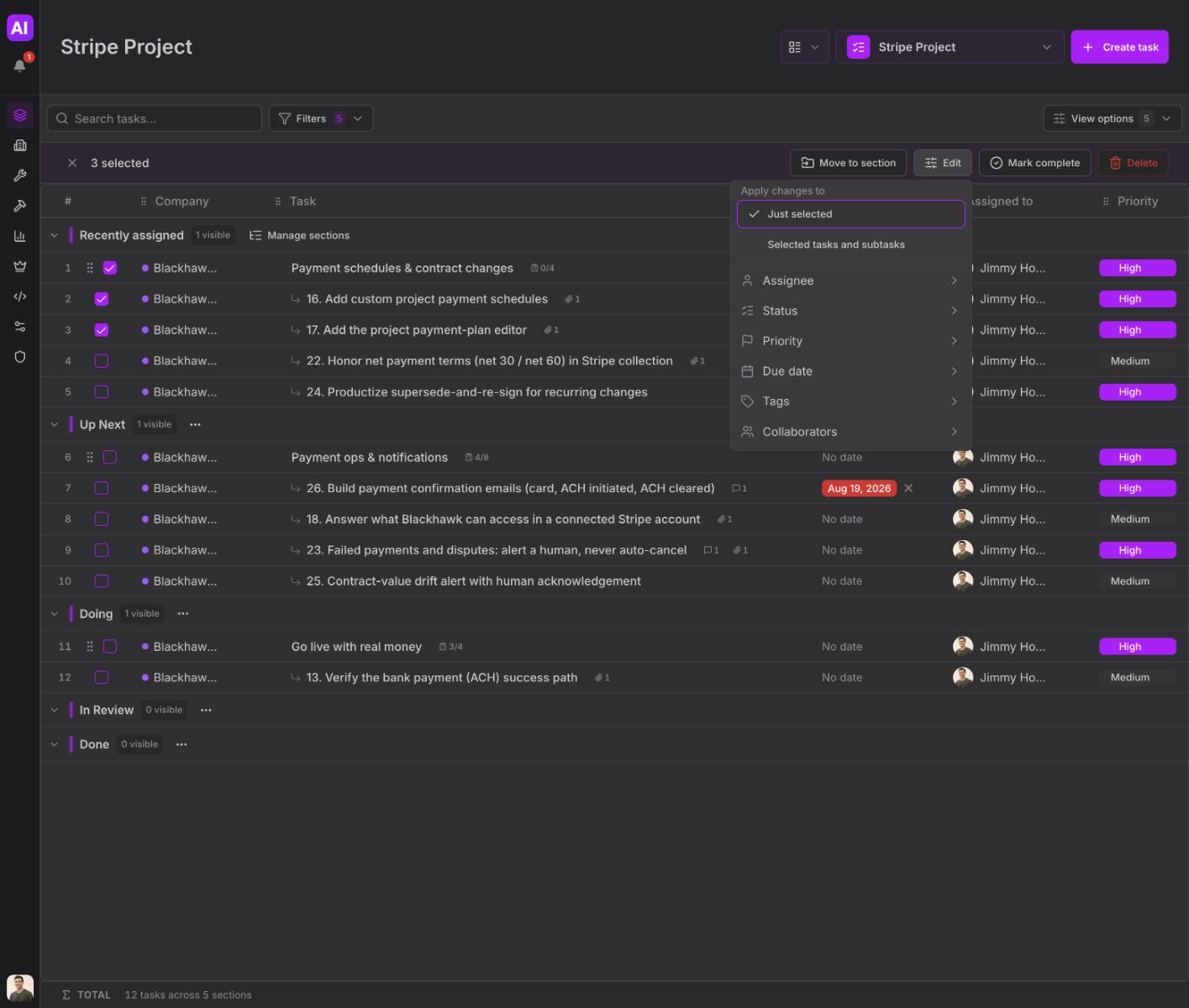
Shift-click the circle at the start of a task row to enter selection mode, then select the other rows you need. The bulk action bar shows how many tasks are selected and offers:
- Edit — change Assignee, Status, Priority, Due date, Tags, or Collaborators. Choose Just selected or Selected tasks and subtasks before applying the change.
- Mark complete — finish all selected incomplete tasks. If selected parents have open direct subtasks, Feta asks whether to include them.
- Delete — move the selected tasks to Trash, where they can be restored later.