Set up team roles
draft · 3 image slots
By the end of this you'll have a list of job roles that matches how your agency actually divides client work — Account Manager, SEO Specialist, whatever you call them. That list is what every other assignment screen in Feta reads from, so it's worth ten minutes up front.
Job roles are not the same as access levels. If that's still fuzzy, read Job role vs. org role first.
You need the Owner or Admin org role for this. If you open the page as a Member, it tells you: Only organization admins can manage roles.
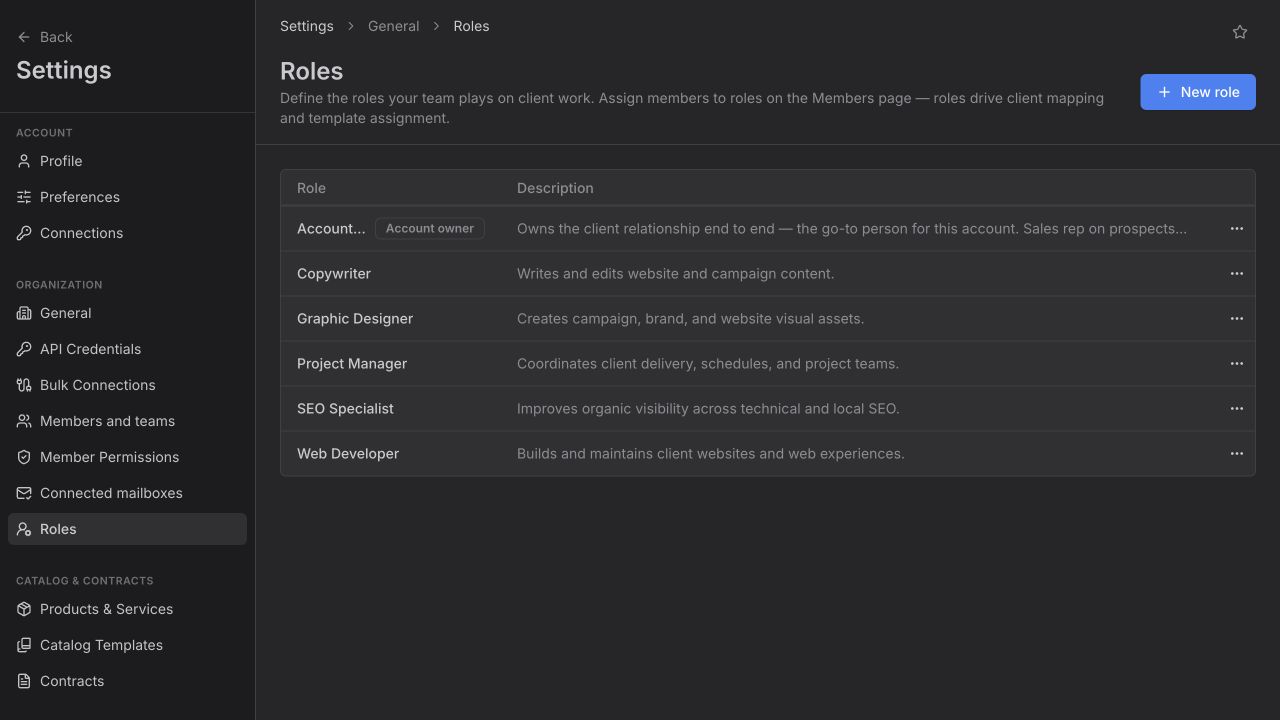
Nothing here is built in
Feta ships no roles list. Every row on this page is a name someone in your workspace typed. If your agency has a "Paid Media Buyer" and no "Designer," that's exactly what your list should say — you are not fitting yourself into somebody else's org chart.
Keep the list short. A role earns its place when you'd want to filter or assign by it. Five to ten is a healthy number for most agencies; thirty means you've written job titles, not roles.
Create a role
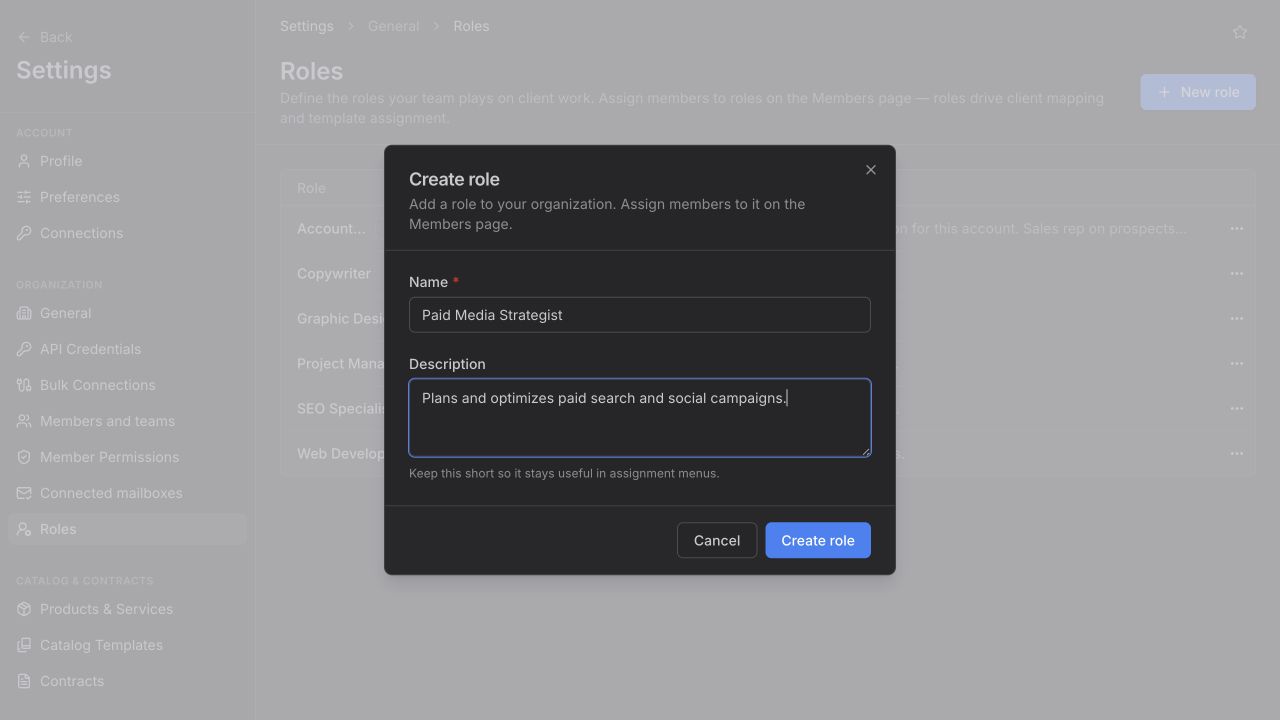
Go to Settings → Roles and click New role.
The Create role dialog asks for two things:
- Name — required. What you'd say out loud:
SEO Specialist,Account Manager. - Description — optional, and worth filling in. It's what this role owns and is responsible for. Keep it to a line; it has to stay readable inside assignment menus.
Click Create role. It's live immediately — the next time anyone opens a client's Team tab or a teammate's job roles, it's in the list.
Rename a role
Open the row's actions menu and choose Edit role. Change the name or description and click Save changes. The change applies everywhere the role appears — nobody's assignments move, and nothing needs redoing. Rename freely.
The account owner role
One role in your list carries an Account owner badge. That role is wired to a client's account owner field: whoever holds it on a client is that client's account owner, and the two stay in step automatically.
You can rename it to whatever you call that person. You can't delete it — the Delete role action is unavailable on that row.
Delete a role
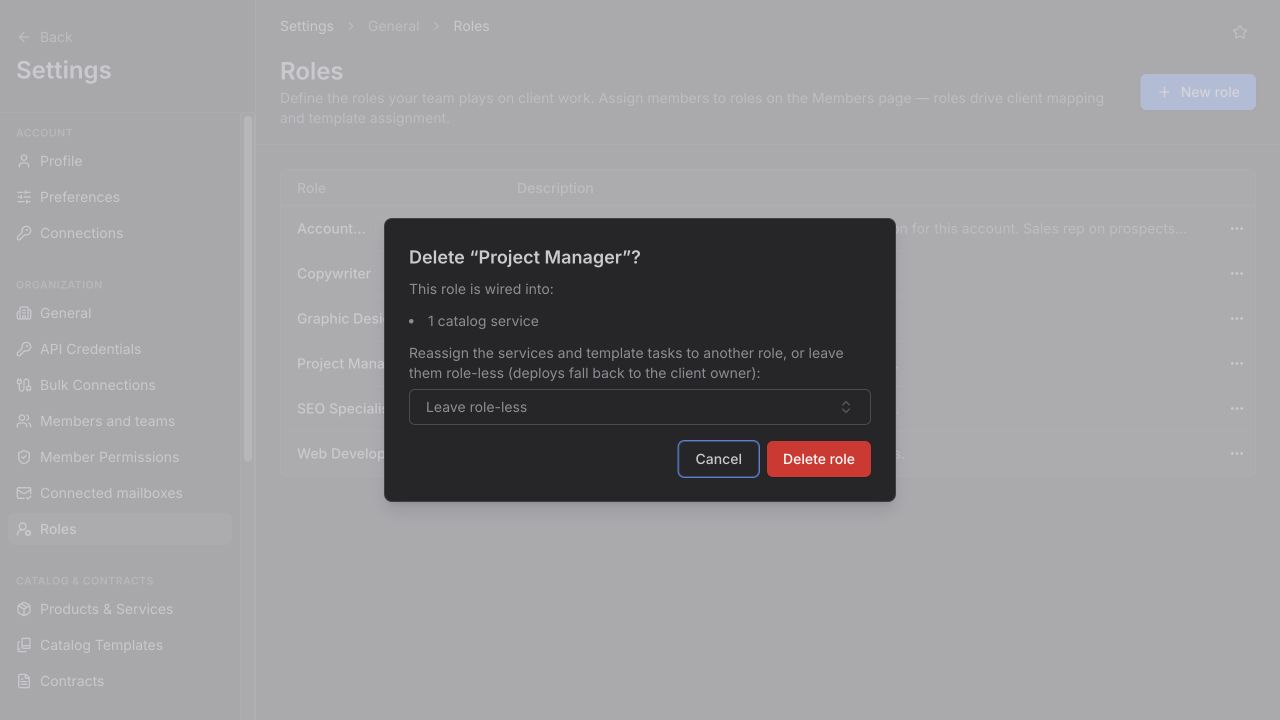
Choose Delete role from the row's actions menu. Feta checks what depends on the role first and shows you, in the confirmation dialog:
- catalog services that reference it
- template tasks that reference it
- workflow automation actions that reference it
- client mappings and member assignments, marked (removed either way)
If services or template tasks are involved, you get a picker: reassign them to another role, or leave the placeholder Leave role-less, in which case that work falls back to the client owner. The button reads Reassign & delete or Delete role depending on what you chose.
The people mappings do not transfer. Deleting a role removes it from every teammate who held it and from every client it was assigned on, whether or not you pick a reassignment target. If you're reorganising rather than retiring, rename the existing role instead of deleting and recreating.
Where your roles show up next
- On Settings → Members and teams, in the Job Roles column — who holds which role.
- On a company's Team tab, one person per role — who does that job on that client.
- On the services in your price book, so contracted work knows which role it belongs to.
Where to go next
- Invite a teammate — put roles on people.
- Assign client role owners — put roles on accounts.
- Set up your price book — where services pick up a role.
Open questions — draft only
- The delete confirmation suggests deactivating a role instead ("Prefer deactivating if you might bring it back"), and the API accepts an is_active change, but the Roles page offers no deactivate control. This article does not tell readers to deactivate, since there is no button for it.
- Roles carry a colour in the data and render as coloured badges, but the Create/Edit dialog has no colour picker — new roles take the default.