Start a project from a template
draft · 2 image slots
A project template turns a prepared plan into a real client project. By the end, you will have reviewed its milestones, tasks, dates, and assignees and deployed the project into your workspace.
Open the project creator
Go to Company → Projects and choose New project.
Enter the Project name, add a Description if it will help the team, and choose the Client. Templates are available for client projects, so select the client before you continue.
Choose the template
Open Template. The picker starts on Start from scratch with Blank project underneath. Choose a template from Project templates instead. Each option shows how many tasks and milestones it contains; use Search project templates… to narrow the list.
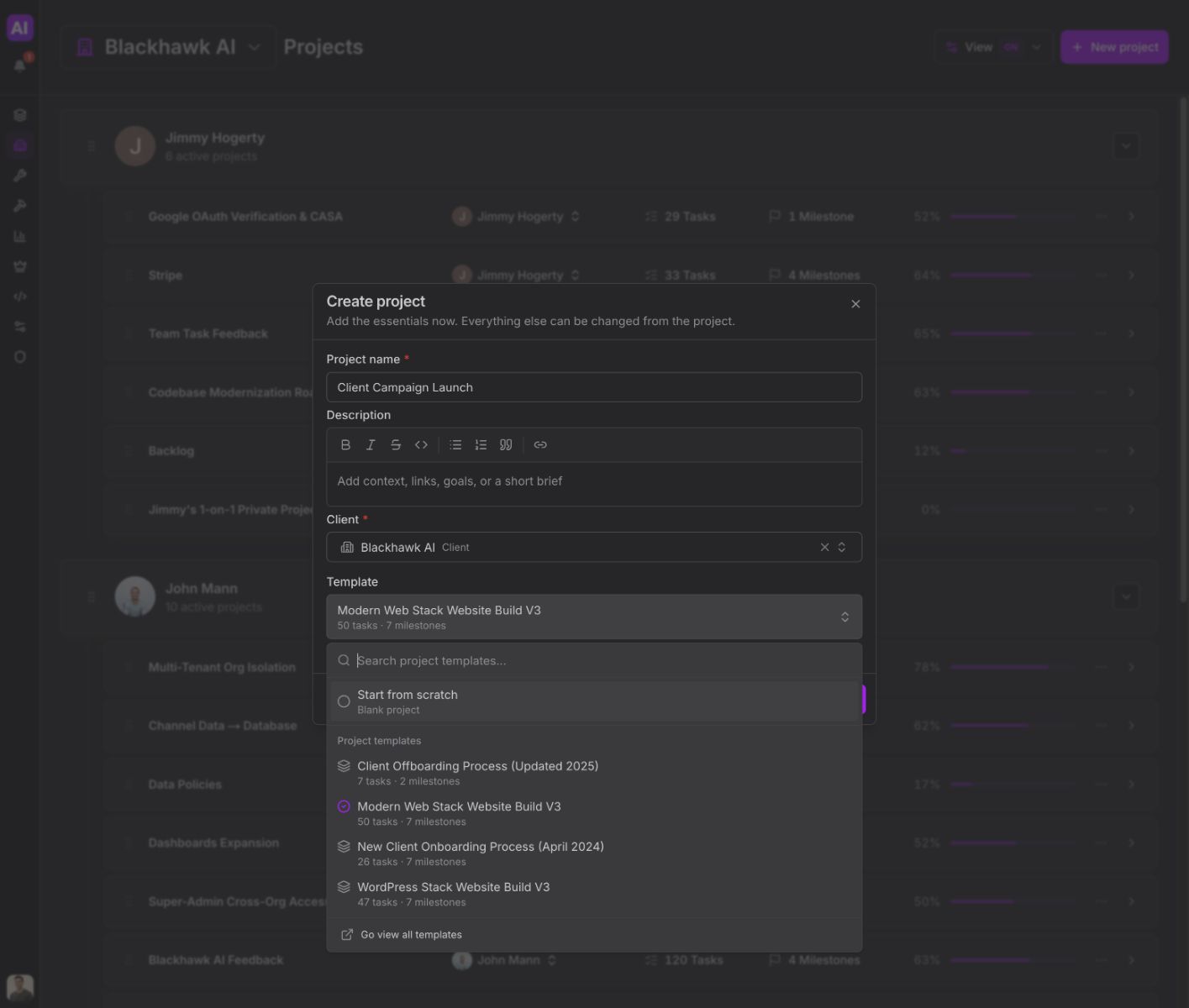
Do not use Go view all templates at the bottom of this picker. That destination is not available in your workspace: the dialog closes and Feta takes you to Companies. Return to Company → Projects and choose New project again if that happens.
Map the work to your team
Choose Continue. If the template uses project roles, Feta opens Assign template roles and pulls in the people already assigned on the client account. Check each role, change the assignee for this project when needed, then choose Review.
Feta will not continue until every required template role has a person assigned.
Review and deploy
On Review project, check the client, template, generated work, and role assignments. Templates with a schedule also show their kickoff and launch dates. Choose Stage project.
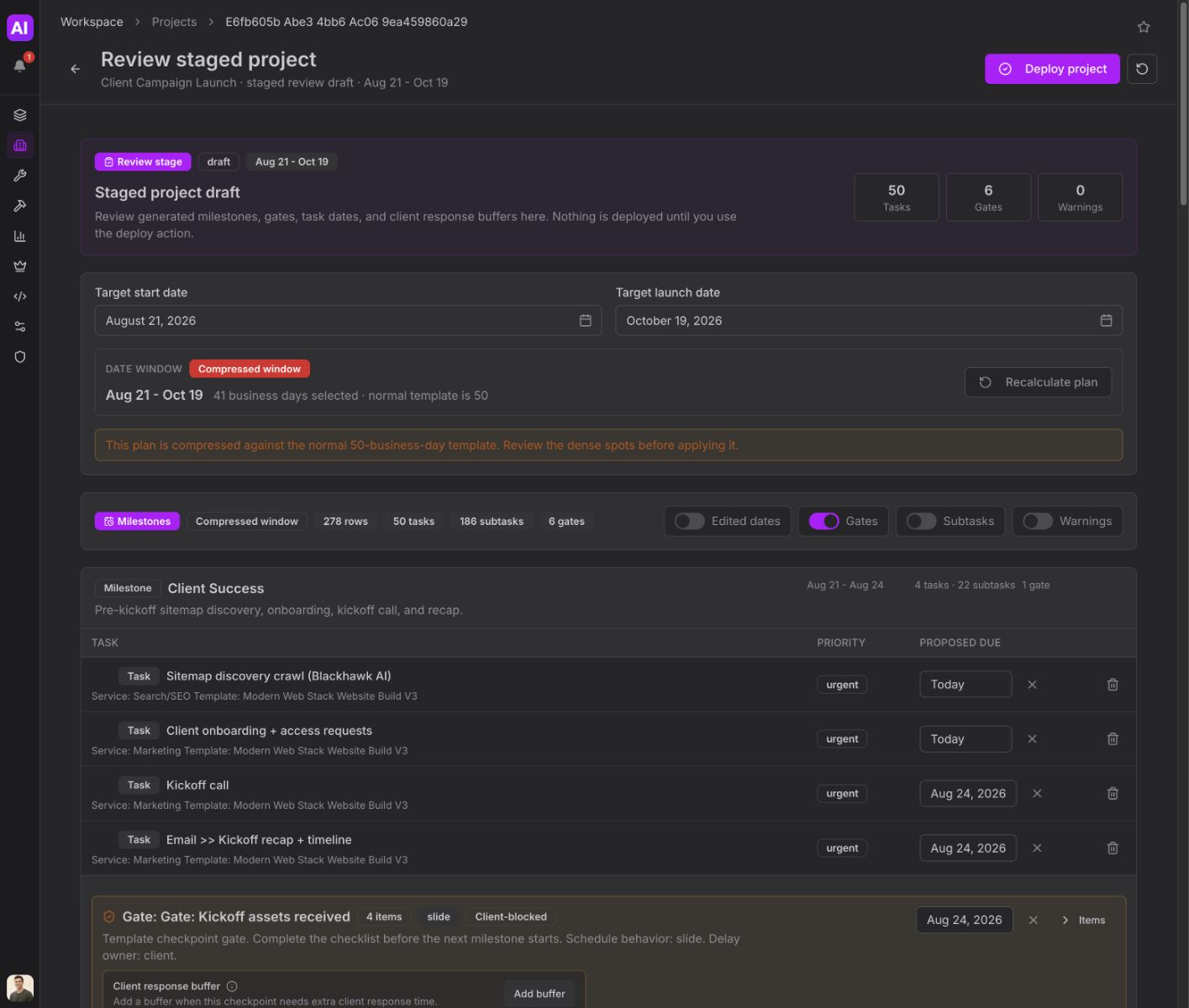
Feta opens Review staged project before adding the generated work to the live project. Review the milestones, gates, task dates, and assignments. When the plan is right, choose Deploy project.