Connect Fathom
draft · 2 image slots
Connect Fathom so completed meetings can land in Feta with their details, participants, summary, transcript, and action items. When Feta matches a meeting to a company, it appears in that company's Activity tab.
Any workspace member can open Settings → Call recording. An org admin must save or change the Fathom connection.
Connect Fathom
An org admin should complete these steps:
- Go to Settings → Call recording.
- Select Set up Fathom. Feta creates a Destination URL for the workspace.
- Select Copy URL.
- In Fathom, open Settings → API Access → Manage → Add Webhook.
- Paste the destination URL and choose recordings plus the meeting data you want Fathom to send.
- Create the webhook and copy the signing secret Fathom shows you.
- Back in Feta, paste it into Webhook signing secret.
- Select Save secret and wait for test.
- Record a short meeting in Fathom to test delivery.
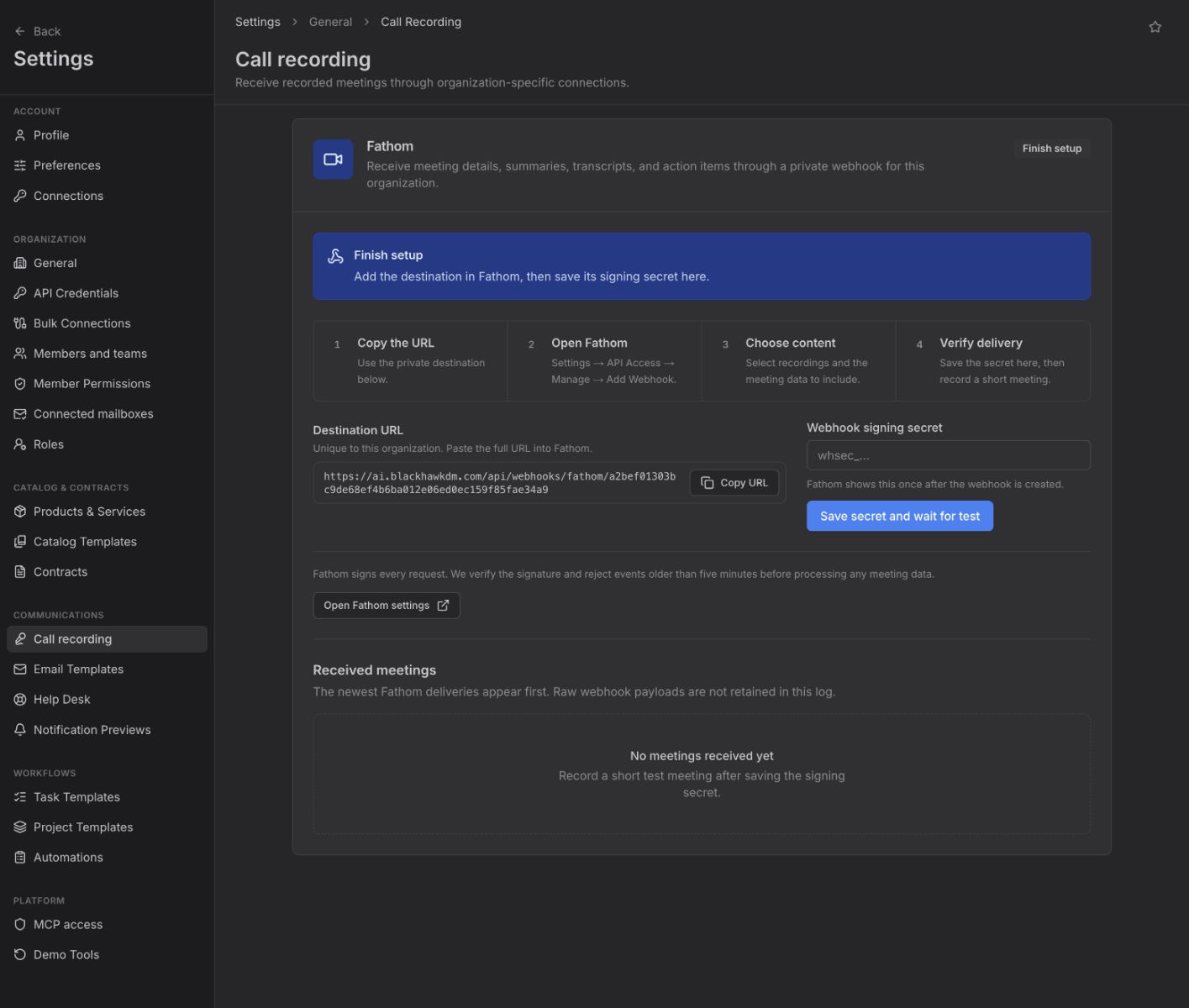
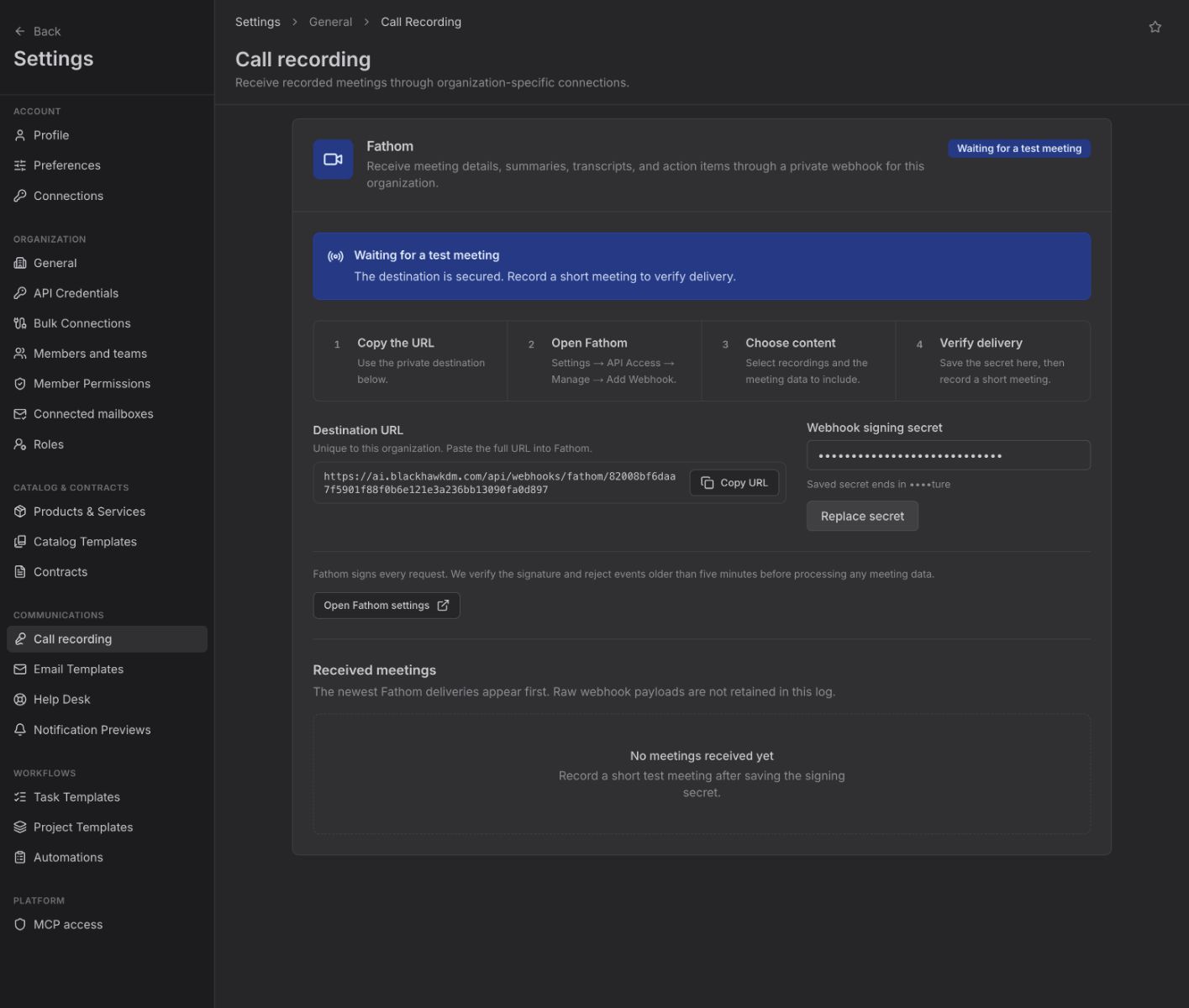
The status changes to Waiting for a test meeting after the secret is saved, then to Receiving meetings after Feta successfully processes a delivery.
What syncs
Each completed meeting can bring over its title, owner, participants, recording link, summary, transcript, and action items. Feta uses attendee information to match the recording to the relevant company. Matched recordings appear under Companies → the company → Activity, where you can open the recording and its summary.
The Received meetings table on the settings page shows the newest deliveries first, with the call title, participant count, call owner, received time, and one of three states: Processing, Received, or Needs attention.
If the connection breaks
Use the status at the top of the Fathom panel:
- Finish setup — the destination exists, but the signing secret has not been saved. Complete the Fathom webhook and select Save secret and wait for test.
- Waiting for a test meeting — record a short meeting after saving the secret.
- Needs attention — a meeting arrived but could not be processed. Check that the secret belongs to this webhook, select Replace secret, then send another test meeting.
- The page says setup could not be loaded — refresh the page. If you are not an org admin, ask one to complete or change the connection.
The Received meetings table keeps failed deliveries visible with Needs attention, which lets you distinguish a delivery problem from a meeting that never reached Feta.