Connect Search Console
draft · 2 image slots
Connect one of a client's verified Search Console properties to Feta. When you finish, their clicks, impressions, click-through rate, average position, queries, and landing pages will begin filling the Search Console dashboard.
Before you connect
Use a Google account that can open the client's property in Search Console. Feta can connect a domain property or a URL-prefix property, and the picker labels each one so you can tell them apart.
Choose the property that matches the website you report on. Feta connects one Search Console property to the client in this flow.
Connect the property
- Open Companies, choose the client, then open Profile → Integrations.
- Find Google Search Console and select Connect.
- Complete Google sign-in and grant access.
- In Select Property, choose the verified domain or URL-prefix property for this client.
- Select Connect.
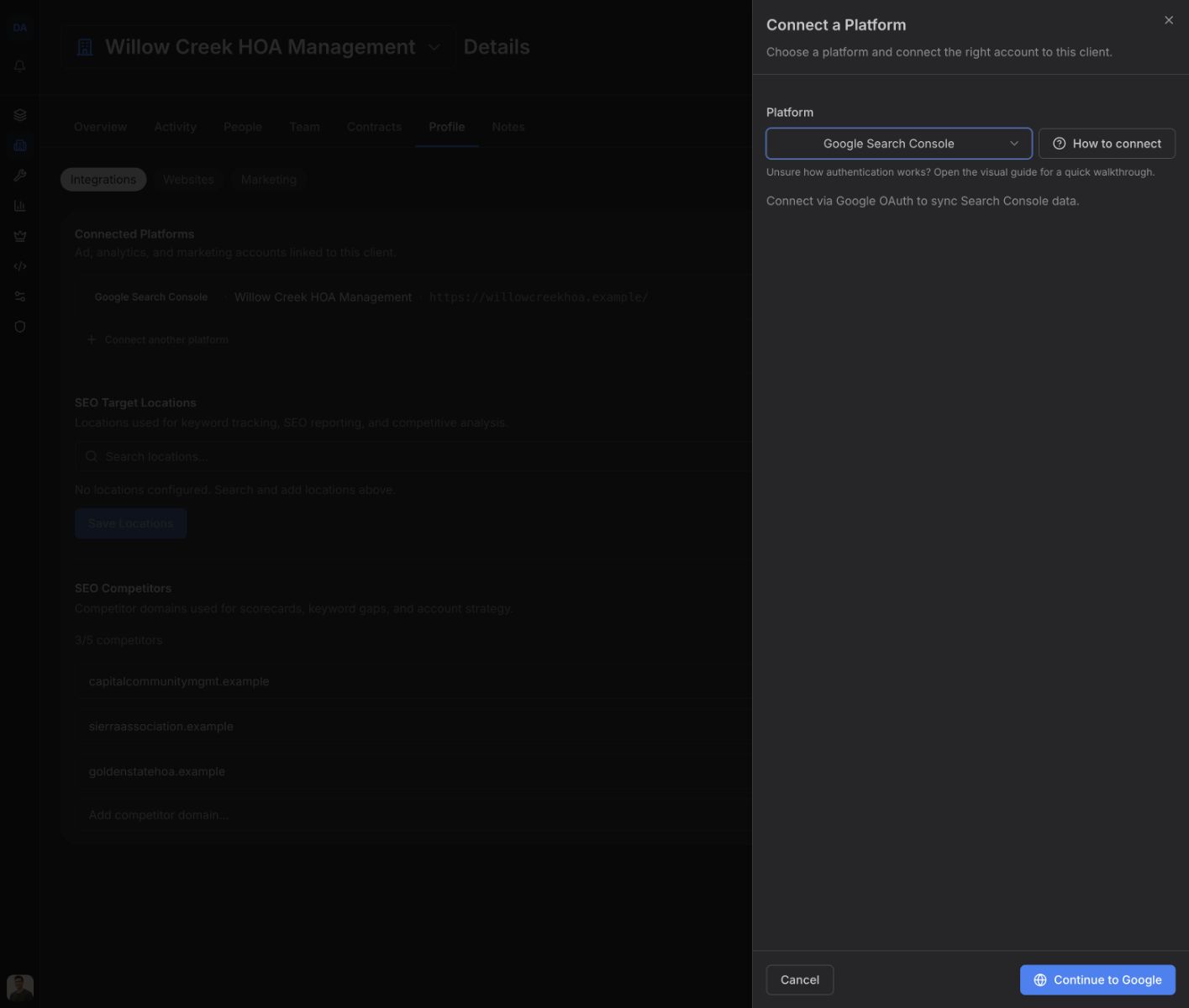
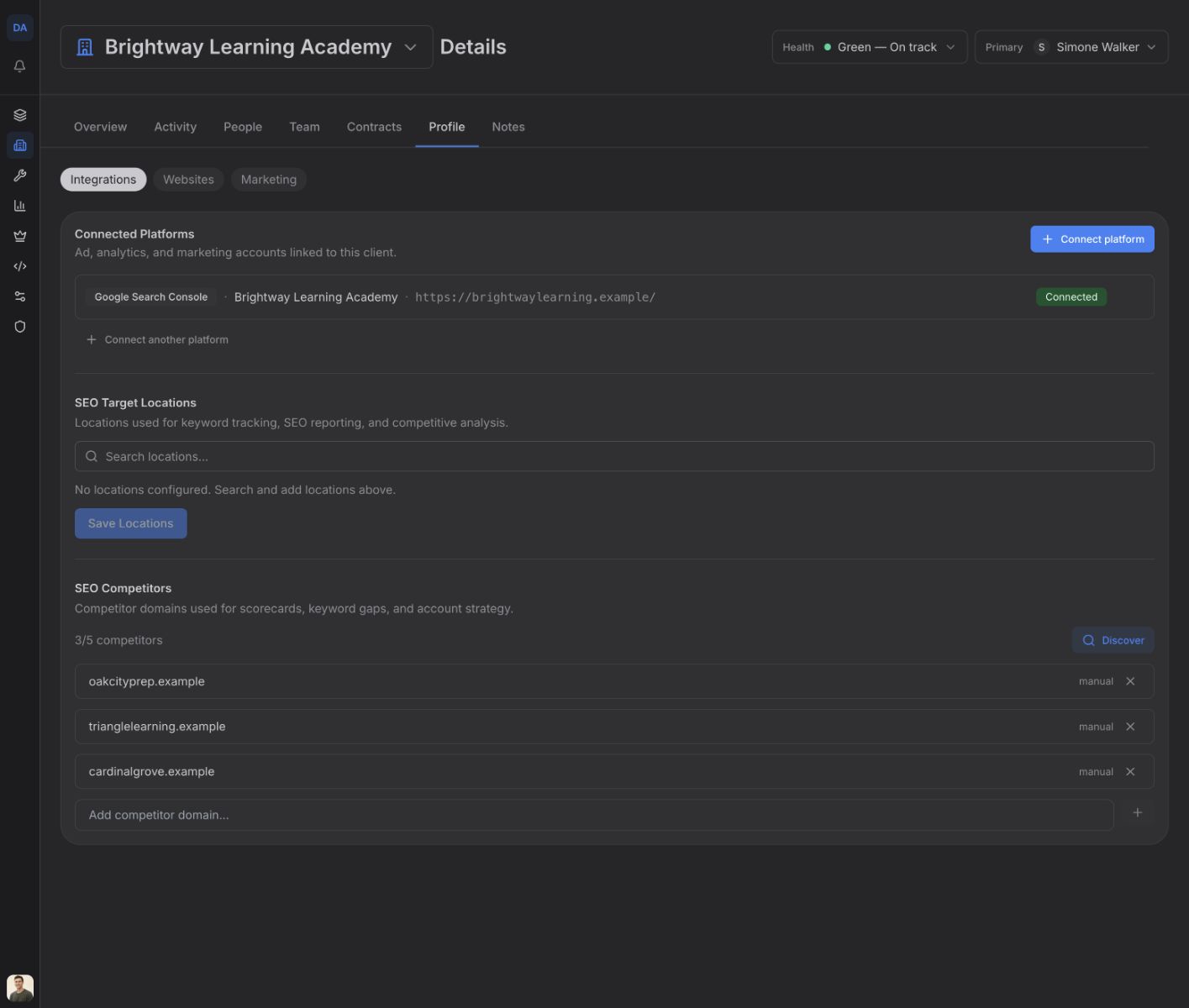
The card changes to Connected when the property is saved. Open Dashboards → Search Console and select the client to see the result.
What syncs
Feta syncs Search Console performance by device, query, page, and country. Those records power the dashboard's clicks, impressions, click-through rate, average position, search-query, and landing-page views.
The first connection starts a history backfill covering 16 months, the history available through Search Console. Feta then runs a daily sync and rechecks recent days for late changes.
If the connection breaks
Return to Companies → the client → Profile → Integrations and check the Search Console card:
- Reconnect required — open the card's options and choose Reconnect with Google. Use an account that still has access to the property.
- Setup incomplete — connect again and finish choosing the property.
- Connected to the wrong property — open the options and choose Change connection, then pick the correct domain or URL-prefix property.
- No Search Console accounts appear — connect a different Google account or give the current account access to the verified property, then try again.