Set up your price book
draft · 2 image slots
Build the catalog your team will pick from when it creates contracts. When you finish, your products, priced services, packages, projects, and units will be ready to add as contract line items without retyping them for each client.
Only an org admin can open and change Settings → Products & Services.
Know the four building blocks
The tabs work together:
- Products are the main offerings in your catalog. Each has a name, SKU, description, service category, and tax details.
- Services are the priced pieces of work under a product. A service carries its price, quantity, unit, frequency, and responsible role.
- Projects & Packages bundle products and services into a recurring package or a finite project you can add to a contract in one move.
- Units define how a service is measured, such as an hour, page, or location.
The tab named Price Book is a read-only summary of part of the catalog. Set up the source items in the other four tabs.
1. Review units
Open Units first. If the service units you need are already listed, leave them alone. To add one:
- Select Add Unit.
- Enter the Singular label and Plural label.
- Select Add Unit.
The new unit becomes available when you price services.
2. Add products
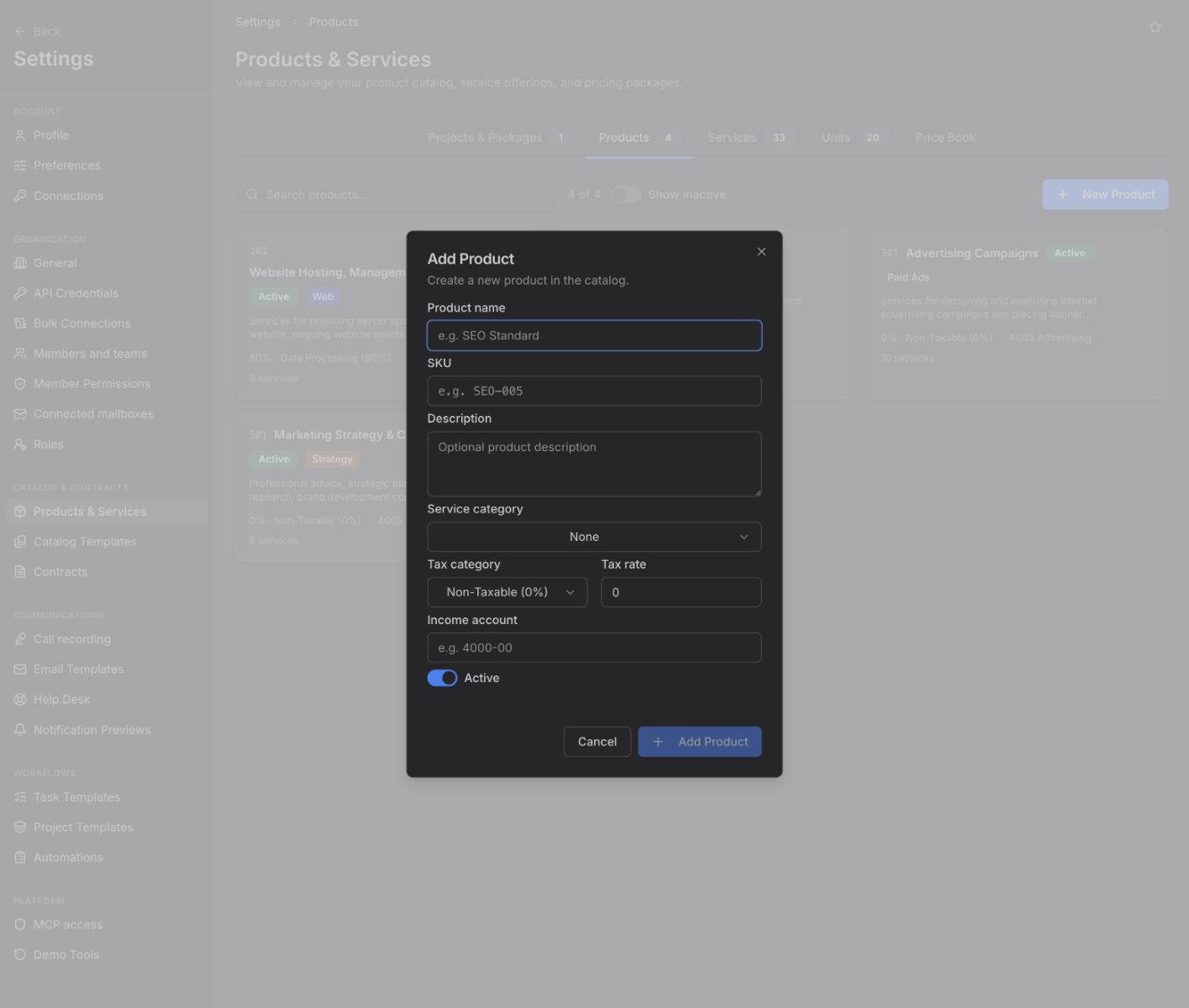
Open Products and select New Product. Complete at least Product name and SKU, then review Service category, Tax category, Tax rate, Income account, and the Active switch. Select Add Product.
Products do not have a start-from-template path. Create each product here or bring it in when you copy a package template in the next section.
3. Add priced services
Open Services and select Add Service. Choose the parent Product, then enter the service's Name, Description, Price, Unit Count, Unit, Frequency, and Role. Select Add Service.
Services do not have a template picker. Add them directly, or let a package template copy its included services into your catalog.
4. Create or copy packages
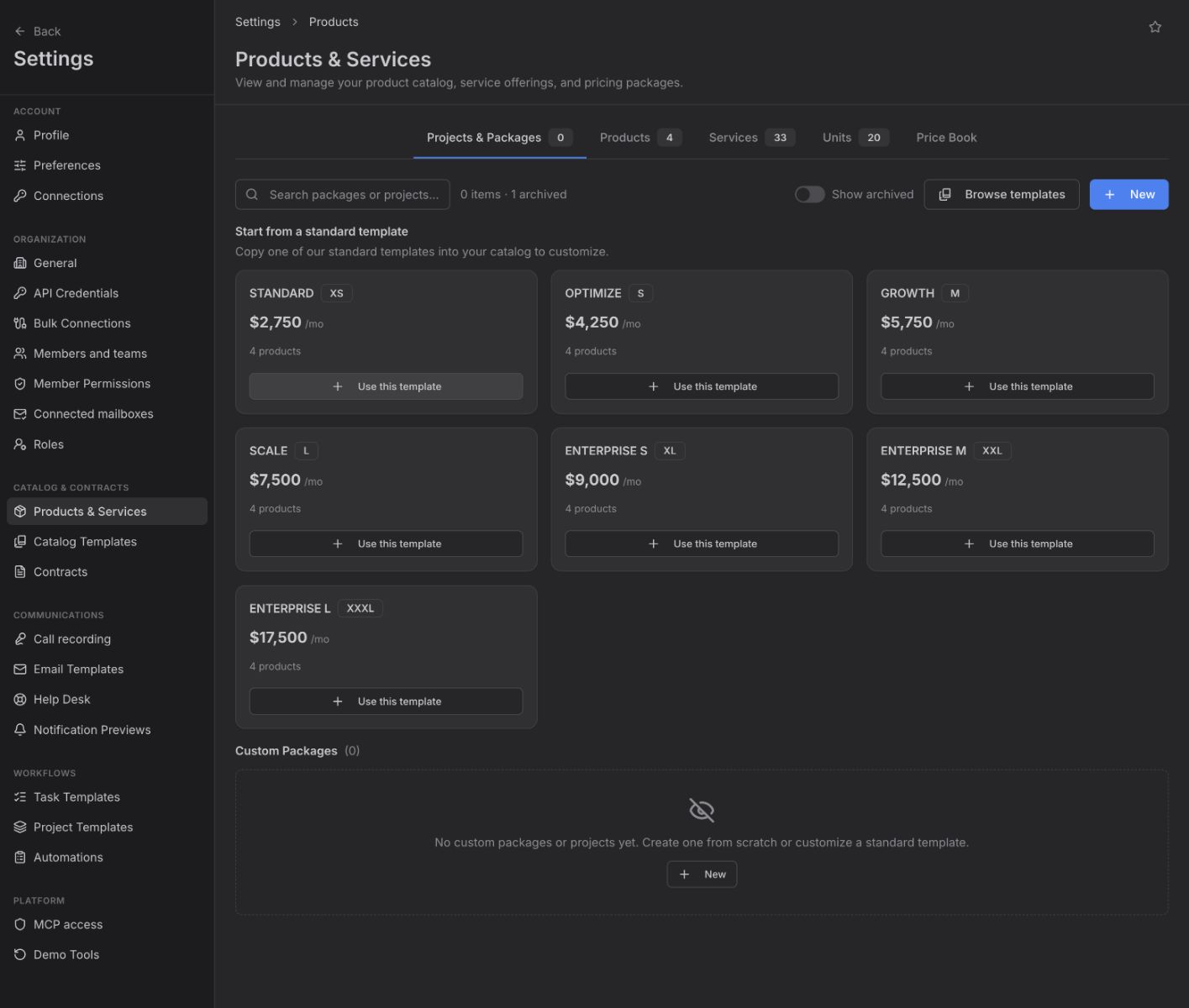
Open Projects & Packages. You have two paths:
- To start with a prepared package, use Start from a standard template when the catalog is empty. If you already have packages, select Copy from template. The copy brings the package and its included products and services into your catalog. Your copy is editable; later changes to the original template do not change it.
- To build from scratch, select New, choose Custom Package or Project, complete the form, and select Create Package or Create Project.
Products and Services do not have their own start-from-template path. Projects & Packages is the only tab that offers it.
Check the result
Open a package or project and confirm that its products and services are present, active, and priced correctly. Then open Price Book for a quick rate-card view, keeping in mind that it is a partial summary rather than the full catalog.
Your catalog is now ready for Contracts → Add Contract.